
TF2 Menu Modification
Hello, esteemed user of the portal Gamer.ru!
Today I'm going to tell you a fairy tale...oops...
Attention! Sensitive individuals - do not watch!

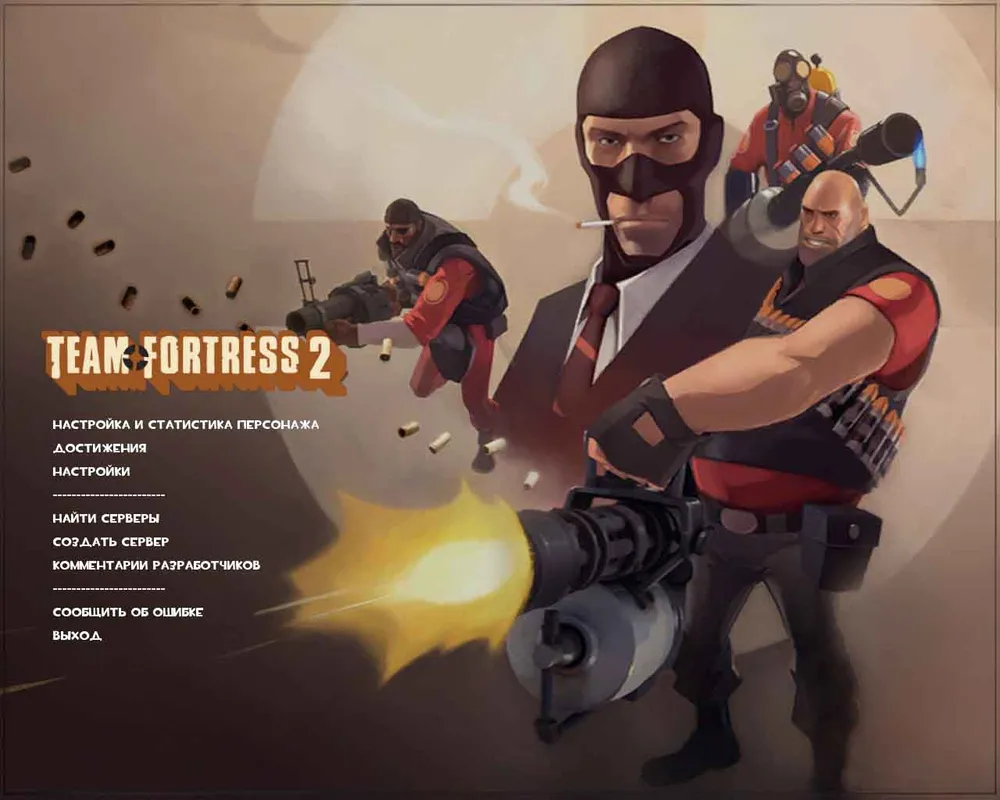
Today I'm going to show you how to turn the original TF2 menu style into something truly awful.
To begin with, we will need any program/plugin that can work with images in the ‘*.vtf’ format. In my small manual, I will be using a plugin for Photoshop. Many consider it 'junk' and say that it 'doesn't work', while others use the VTFEdit program, which converts popular formats to VTF.
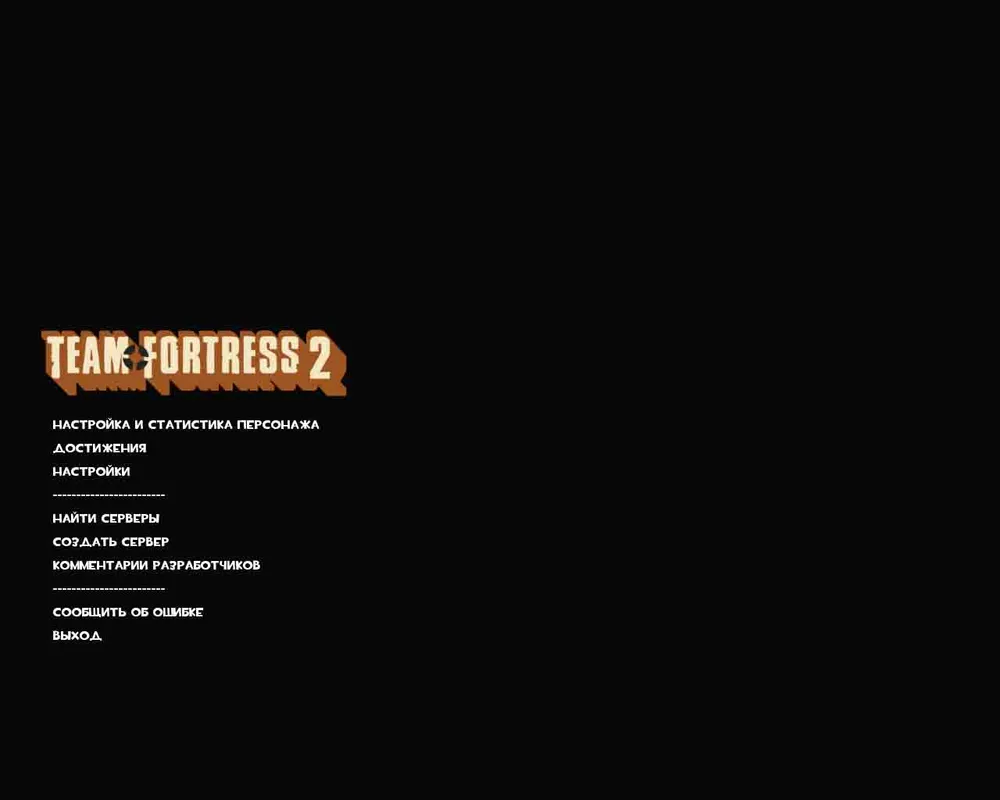
First of all, I would like to change the background in the menu, as I have become quite bored with it over the year and a half. I don't like any pictures in the background, so I use a black fill; that's a true style.
Open Photoshop, create a 1*1 file with a background color of 'BLACK', and save it as 'background01.vtf' in the folder
\Program Files\Steam\SteamApps\%username%\team fortress 2\tf\materials\console
I also recommend saving a file with the same name 'background02.vtf' in the same folder, so that nothing deviates from our true black color!
Voila!
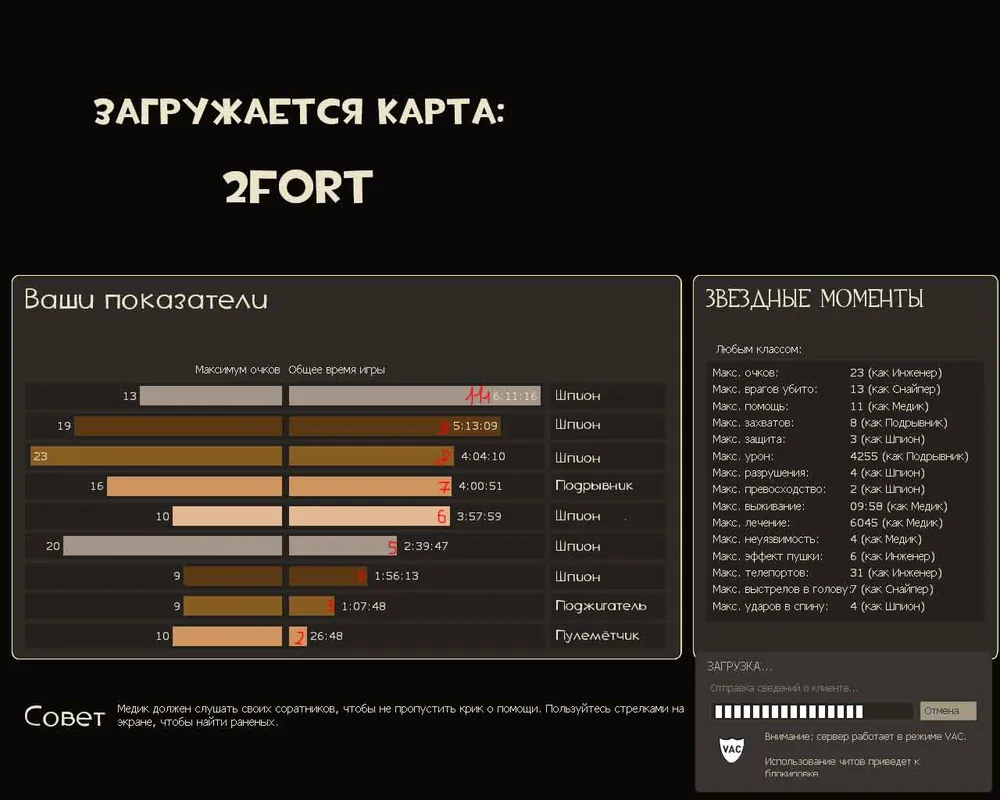
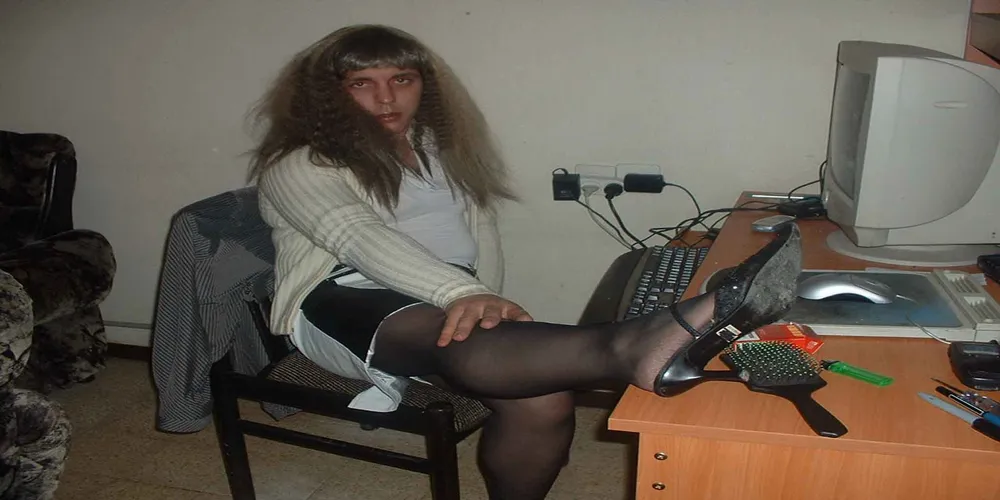
Now let’s dare to insert an image as the background, although this idea doesn’t excite me. Let's take one of the images that popped up on Google with the query 'image' set to 'large'...
Here we run into some difficulties, as VTF is a very specific format; the size in both horizontal and vertical dimensions must be a power of two (2, 4, 8, 16, 32, 64, 128, 256, 512, 1024, 2048, 4096, etc.).
So, we open our document 'Image.BMP' and stretch it to the required size; in my case, 1024768 turned into 10242048, which I just liked=))
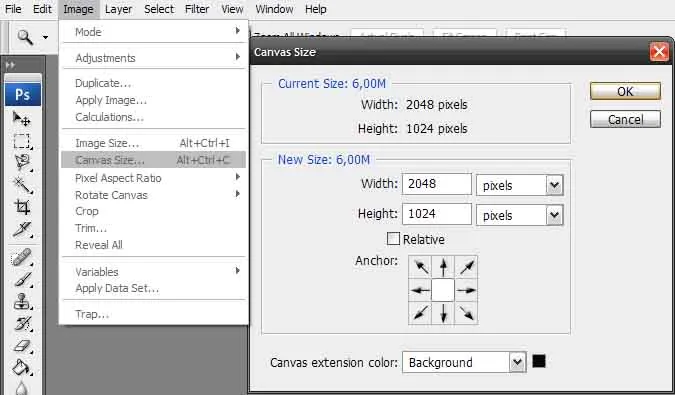
A brief manual for those who don’t know how to 'stretch' an image, for English-speaking Photoshop (I’m not an expert, so I explain as I can):
Image - canvas size – set the Width and Height values.
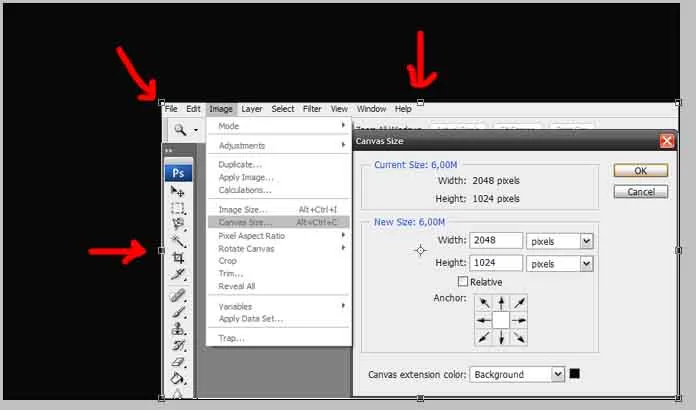
Yes, there are 'Empty Areas'; we get rid of them like this:
Edit - free transform (Ctrl+t) and 'pull' at the edges of the image (key points)
Save it as 'background01.vtf' and 'background02.vtf' in the folder
\Program Files\Steam\SteamApps\%username%\team fortress 2\tf\materials\console
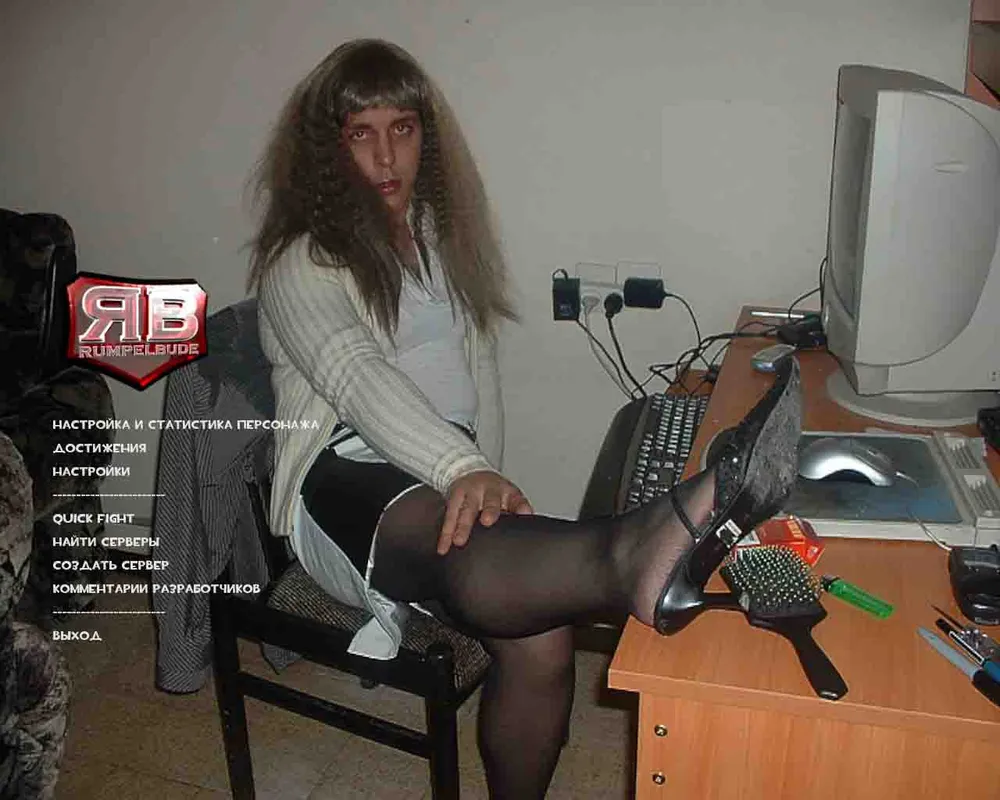
Here’s my result:
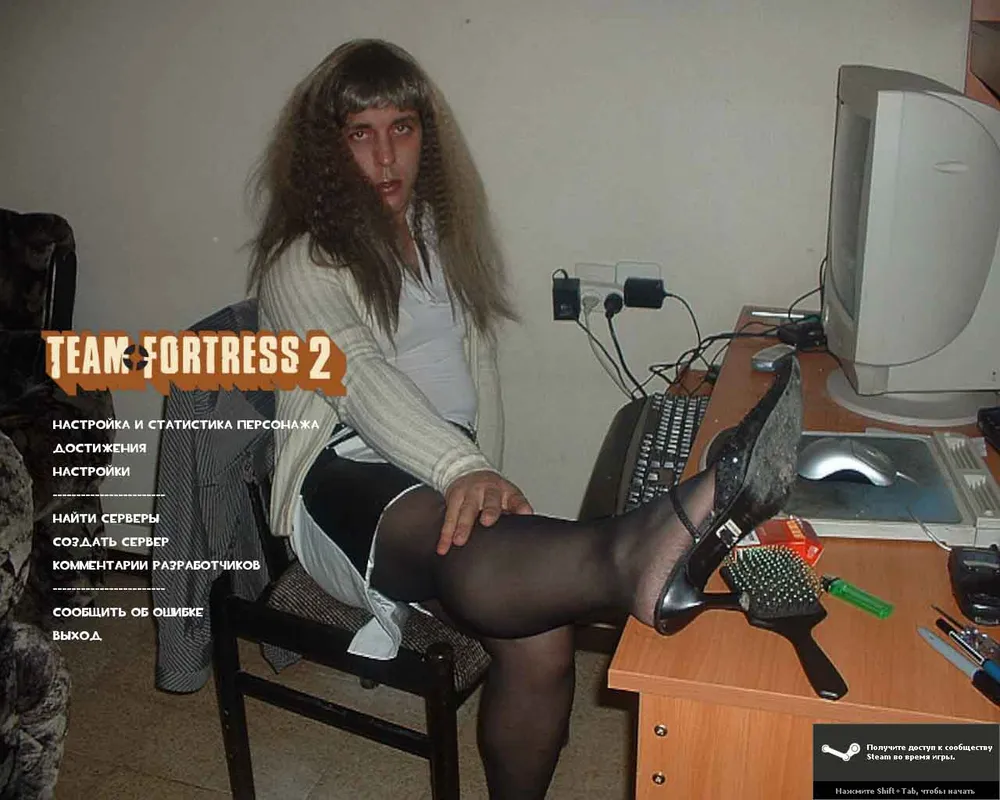
The third option for changing the background is to download a ready-made one; here’s a collection.
Each archive contains detailed instructions in English.
Next on the agenda - adding items to the main menu.
In the folder '\team fortress 2\tf\cfg', create a new folder (I named it 'UG'), and there create a file quick.cfg with the following:
Connect IP:port
Here's what the file should look like if you want to enter the server of Ksevelyar instantly with a click:
Connect 95.84.132.233:27015
To work with the main game menu, create a file GameMenu.res in the folder 'team fortress 2\tf\resource'
In this file, we write:
"GameMenu" [$WIN32]
{
"1"
{
"label" "#GameUI_GameMenu_ResumeGame"
"command" "ResumeGame"
"OnlyInGame" "1"
}
"2"
{
"label" "#GameUI_GameMenu_Disconnect"
"command" "Disconnect"
"OnlyInGame" "1"
}
"3"
{
"label" "#GameUI_GameMenu_PlayerList"
"command" "OpenPlayerListDialog"
"OnlyInGame" "1"
}
"4"
{
"label" "------------------------"
"OnlyInGame" "1"
}
"5"
{
"label" "#GameUI_GameMenu_CharacterSetup"
"command" "engine open_charinfo"
}
"6"
{
"label" "#GameUI_GameMenu_Achievements"
"command" "OpenAchievementsDialog"
}
"7"
{
"label" "#GameUI_GameMenu_Options"
"command" "OpenOptionsDialog"
}
"8"
{
"label" "------------------------"
}
"9"
**
{
"label" "QUICK FIGHT"
"command" "engine exec UG/quick.cfg"
**
}
"10"
{
"label" "#GameUI_GameMenu_FindServers"
"command" "OpenServerBrowser"
}
"11"
{
"label" "#GameUI_GameMenu_CreateServer"
"command" "OpenCreateMultiplayerGameDialog"
}
"12"
{
"label" "#GameUI_LoadCommentary"
"command" "OpenLoadSingleplayerCommentaryDialog"
}
"13"
{
"label" "#GameUI_Controller"
"command" "OpenControllerDialog"
"ConsoleOnly" "1"
}
"14"
{
"label" "------------------------"
}
"15"
{
"label" "#GameUI_GameMenu_Quit"
"command" "Quit"
}
}
Bold modifications are highlighted. Everything written in normal text is the standard menu view. Additionally, you can add a wide variety of commands to the menu, from changing nicknames to starting/ending demo recordings.
A bit about how to write here. Each menu item must start with a number (not necessarily in order). Then goes an opening brace, within which the menu item and its actions are described. "label" "name"– what we will see in the game (name).
Next – "command" "command_description" – what should happen when this menu item is pressed. After that, parameters of the item follow; for example, if you want this item to be displayed only when you are ingame (on some server), add "OnlyInGame" "1"
The next item on our entertainment show is changing the Team Fortress 2 logo, again, in the main game menu.
To change the logo, create a file GameLogo.Res in the folder 'team fortress 2\tf\resource', and write the parameters of our future logo.
"Resource/GameLogo.res"
{
"GameLogo"
{
"ControlName" "EditablePanel"
"fieldName" "GameLogo"
"xpos" "0"
"ypos" "0"
"zpos" "50"
"wide" "256"
"tall" "256"
"autoResize" "1"
"pinCorner" "0"
"visible" "1"
"enabled" "1"
"offsetX" "-15"
"offsetY" "20"
}
"Logo"
{
"ControlName" "ImagePanel"
"fieldName" "Logo"
"xpos" "0"
"ypos" "0"
"zpos" "50"
"wide" "256"
"tall" "256"
"visible" "1"
"enabled" "1"
"image" "../Vgui/tnc/Console_tnc"
"scaleImage" "1"
}
}
These parameters are for a 256*256 logo; if your image has different parameters, fit it to your needs by changing the content of the file.
Drop your VTF image into the folder
' team fortress 2\tf\materials\Vgui\tnc'
The image name must be Console_tnc.vtf. OK. Here’s my result:
If you suddenly dislike the background and want to return to the default one, just delete the files "background02.vtf" and "background01.vtf" from the folder \team fortress 2\tf\materials\console.
If you dislike the logo, delete the GameLogo.Res file from the folder team fortress 2\tf\resource.
If you dislike our modified menu, delete the GameMenu.res file from the folder team fortress 2\tf\resource.
I hope you enjoyed it=) Thank you for your attention=)
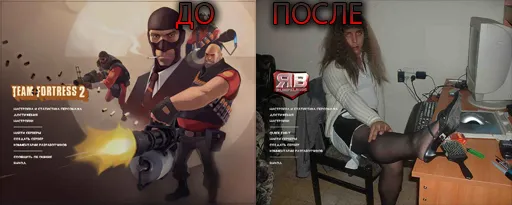
Here for comparison; I think the choice is obvious, everyone should modify the Team Fortress 2 menu!