
Detailed Guide to Game Settings [translation from Geforce.com]
"Content provided by the official fan site "Chronicles of Kaer Morhen"
[td]User Korush Gazi from Geforce.com created a fantastic guide on settings for The Witcher 2 for those who want to play the game with a balance of performance and visual quality. The article thoroughly examines all game settings, so after reading it, you will definitely know how to properly set the numerous game parameters. The author's translation of the article is presented below.
The Witcher 2: Assassins of Kings continues the story of the monster-slayer Geralt of Rivia, a strong and mysterious warrior we played as in the original game "The Witcher". Now, Geralt is accused of killing a king. The path to justice runs through an atmospheric world filled with all sorts of creatures, side quests, and secrets. While this is a true RPG, the game also features a complex combat system that requires mastery. A PC exclusive, The Witcher 2 fully utilizes the power and versatility of the platform.
The aim of this guide is to help you understand how to properly set the numerous game parameters, as incorrect settings can cause the game to lag even on the most powerful systems.
Before proceeding, make sure your computer meets the minimum system requirements for the game:
**
• Processor: Core 2 Duo 2.2 GHz or AMD Athlon 64 X2 5000+ or better
• RAM: 1GB RAM (Windows XP), 2GB RAM (Windows Vista/7)
• Hard drive: 16GB of free space
• Video card: 512MB and Pixel Shader 3.0 (GeForce 8800 or better)
• Sound card: compatible with Direct X 9.0c
• OS: Windows XP SP2, Windows Vista SP2 or Windows 7
**
• Internet connection required for installation
Below, you'll find a detailed description of all the numerous settings in the game, built into the Configuration Tool, as well as comparison screenshots in necessary places to compare visual quality after changing these parameters. Keep in mind that some things may differ depending on your system and configuration. We want to provide you with enough information on how to correctly configure the game, which settings to enable or disable so you achieve a balance of visual quality and performance.
General System Optimization
In addition to game parameter settings, the correct configuration of the operating system is also crucial. Many performance issues, particularly freezes, crashes, and stuttering, can stem from incorrect Windows settings or outdated and improperly configured drivers. Therefore, we recommend that you download the latest version of the program TweakGuides Tweaking Companion (TGTC) and optimize your system. At the very least, don't forget to update your video card drivers to the latest version.
Performance Measurement
To properly execute various settings, you need a way to measure frames per second (FPS). A quick and easy way to measure the FPS of any game is by using the free utility FRAPS. Download, install, and run FRAPS before launching The Witcher 2. You will see a yellow FPS counter displayed in the corner of the screen.
Pay attention to this FPS indicator, especially during active actions in the game, such as in heavy combat or cinematics - the frames per second will drop (FPS "drops"). Thus, it is good to notice your minimum FPS. If it is not very high, you will need to adjust various game parameters until it reaches a stable 20-25 frames per second during active actions and even higher (30-35 FPS+) during regular gameplay, like walking around town and talking to others.
Main Game Settings
To access the main game settings, launch The Witcher 2, and in the game's main menu, select options. You can change them, but none of them affect performance. Access to more detailed settings is described below.
Sound and Music
Music volume and sound volume: these two sliders adjust the volume of the music and sound effects in the game. Set them according to your preference. If you have sound issues in The Witcher 2, try reducing the number of channels to 5.1, or enable stereo mode in your sound card control panel. Also, make sure you have the latest audio drivers installed - see the section General System Optimization for more details.
Gameplay
Difficulty: The difficulty level in The Witcher 2 is chosen at the start of a new game, however, you can change it at any time. This is a very important parameter. At the easy level, enemies are weaker and deal less damage, while Geralt inflicts greater damage on them. The normal difficulty level is moderately challenging and requires some practice mastering combat against multiple foes. The hard level is only for very experienced players, requiring full use of all of Geralt's skills to win battles. The Insane level is incredibly hard, and if Geralt dies, you will have to start the game over.
Combat Diary: if this option is checked, detailed data on the damage dealt and received during combat will be displayed. This option is for those who prefer to see the amount of damage dealt and received.
Tips: If this option is checked, small windows with helpful advice will appear whenever Geralt encounters new features, uses new items, and abilities. Beginner players, especially those unfamiliar with the "Witcher" series, should enable this setting at least during the prologue and the beginning of the first chapter.
Hard QTE: Quick Time Events (QTE) occur at certain moments in the game and require pressing certain keys/buttons in a specific sequence. Fistfighting is one example of a QTE. If the "hard QTE" option is checked, QTE moments will become a bit harder and require faster reactions. If unchecked, QTEs become easier, and in some places (like cinematics) can even be completely removed. You cannot fully disable QTEs.
Subtitles: If this option is checked, subtitles will appear on the screen during dialogues.
Control Options
Controller Type: This parameter allows you to choose the type of controller being used in the game. By default, this is the keyboard, but you can also use a gamepad. To change key values, you need to open the Configuration Tool and press the "control settings" button.
Mouse Sensitivity: This parameter defines the response level of the mouse to your movements. If you changed this setting and still feel stuttering, it is likely due to low performance. Check your frame rate using the FRAPS program, and if it's below 20-25 FPS, you need to change settings to improve responsiveness. Disabling vertical sync also helps reduce mouse lag.
Inverting the X-axis makes the mouse work oppositely. Looking up will make you look down, and looking down will make you look up. Inverting the Y-axis will change mouse movement so that moving the mouse left will make you look right, and looking right will make you look left.
Graphics
Brightness and Gamma: The "brightness" parameter displays the overall brightness of the image in the game. Adjust it to see details in dark scenes, but so that the image is not too bright. Gamma is a more complex parameter and should usually remain at default.
To access full game settings, open The Witcher 2 Launcher and select the "settings" option. For direct access to the Configuration Tool, go to the installed game folder \Witcher 2\Bin\ and run the Configurator.exe file.
Configuration Tool
The Configuration Tool will open in a new window and will default to contain only a few basic parameters. Check the "detailed settings" box to see the complete range of additional options.

Initially, all options are set to "default". From this basic configuration, we will modify individual settings to see what effect they have on image quality and performance.
Complete system configuration:
• GeForce GTX 460 1GB
• Intel Core i7 940
• 3GB RAM
• Win7 64-bit
• Nvidia 275.33 WHQL Drivers
Resolution, Full Screen, Vertical Sync
Screen Resolution
This parameter adjusts the game's resolution, measured in pixels horizontally and vertically (for example, 1920 pixels x 1080 pixels). The higher the resolution, the sharper the image. However, high resolution can also burden your system, particularly the video card, and therefore can significantly reduce overall performance. So, if adjustments to other parameters cannot sufficiently increase your system's performance, lower the resolution.

Performance Comparison
Full Screen
If you want to run The Witcher 2 in a window, disable the "full-screen" option. Running the game in windowed mode can be helpful if you want to lower your screen resolution but keep the image sharp. However, to prevent issues with memory and overall stability, we recommend playing in full-screen mode.
Graphics Settings
This parameter determines what level of graphics will be applied in the game. Available options: low, medium, high, and ultra.

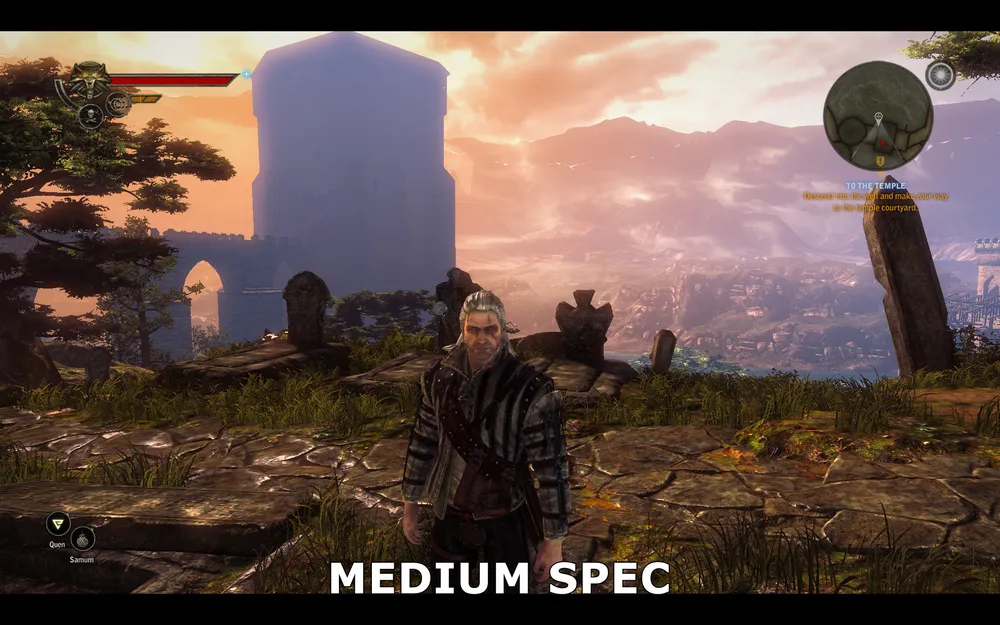


The effect of this parameter on performance is shown below:

The graph confirms that the first significant drop in performance occurs when transitioning from low to medium graphics quality, however, the most substantial drop in performance occurs when switching to ultra graphics settings, as they automatically enable extreme quality, causing serious damage to performance even on the most powerful systems.
It should also be noted that the "ultra" setting does not provide the best possible image quality in The Witcher 2, as you can still increase the parameters of "texture memory size" and "level distance". Therefore, the "graphics settings" parameter is just a starting point. We strongly recommend not to rely on them too much, and to individually adjust various parameters. This will certainly benefit you in terms of performance and image quality.
Vertical Sync
Also known as "VSync", vertical synchronization synchronizes the frame rate in a computer game with the vertical refresh rate of the monitor. Do not confuse this with FPS. When VSync is enabled, your maximum FPS will be limited to your monitor's refresh rate, which for most people is 60 Hz (60 FPS). When vertical sync is disabled, you may experience a phenomenon known as "screen tearing" - parts of the image temporarily become misaligned. This does not harm your system, but it can be annoying. Enabling VSync eliminates tearing but may reduce FPS by as much as 50% or more, and also decrease mouse sensitivity. To benefit from vertical synchronization without sacrificing performance, enable triple buffering. Otherwise, to ensure a high frame rate and prevent mouse lag, it is recommended to turn off vertical synchronization.
Textures and Shadows
Texture Quality Reduction
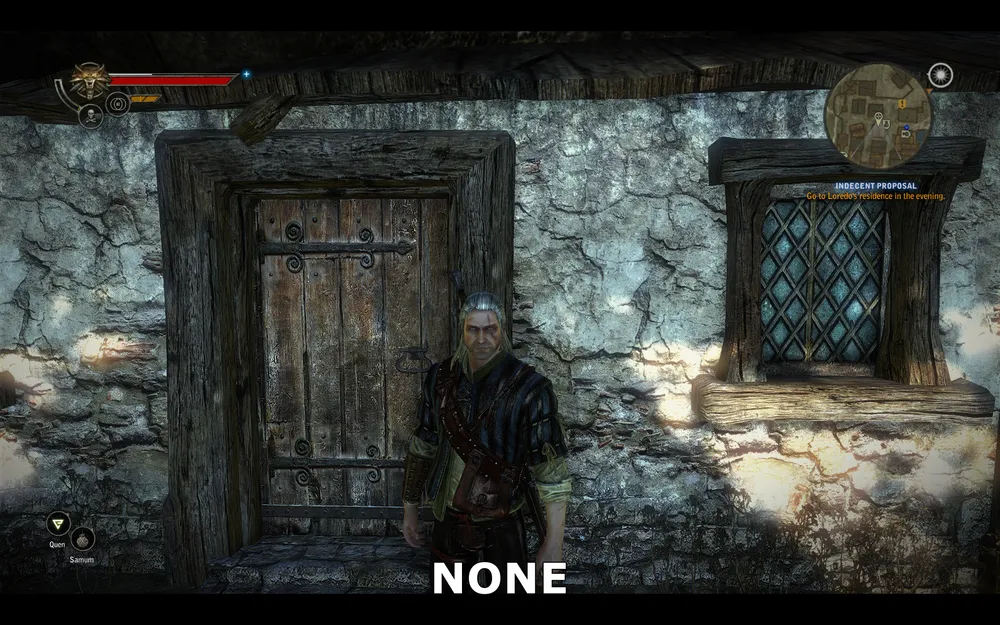
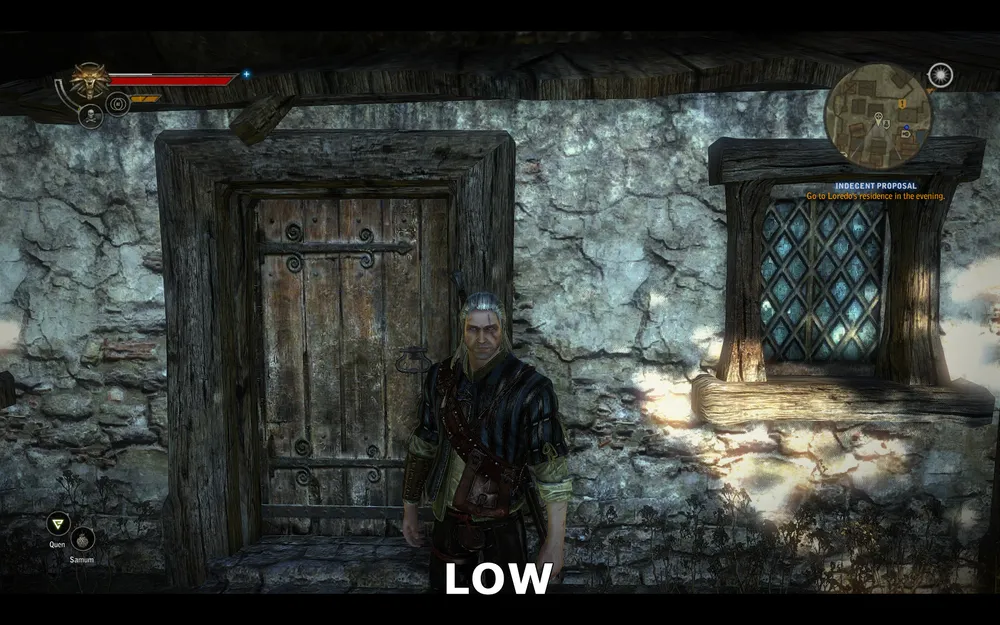
This parameter controls the quality of textures used in the game. Textures cover the surface of each object in the game. Enabling texture reduction will make them more blurred. If set to "no reduction", the textures will be in their original resolution, providing more detailed images, but requiring more memory.
No reduction
Slight reduction
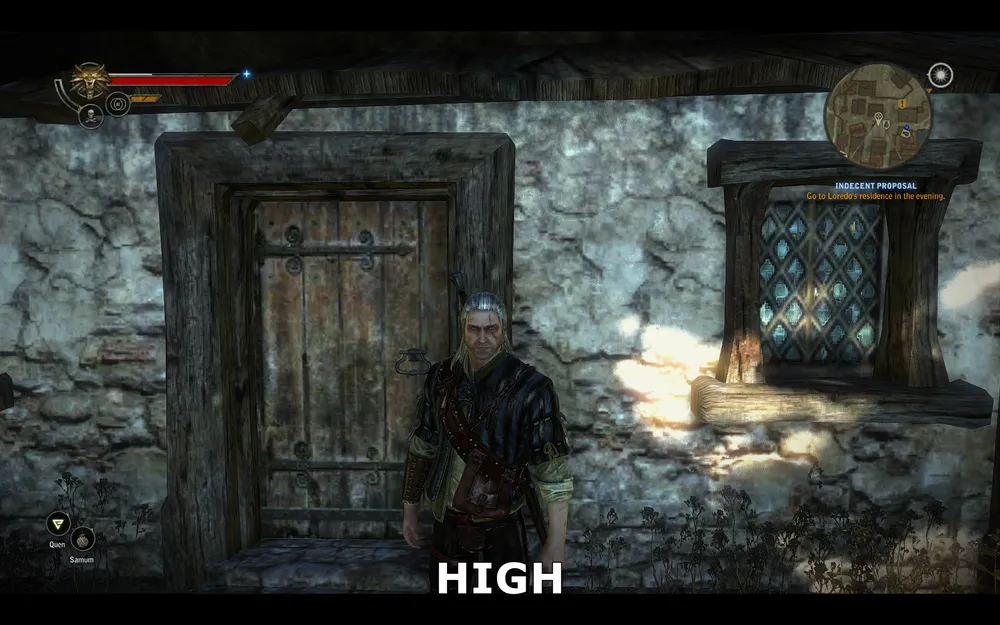
Significant reduction
The screenshots above show the effects of changing this parameter. When there is no texture quality reduction, the surface of walls, doors, and windows appears very detailed. With low texture reduction, the texture resolution decreases, resulting in some blurriness and loss of fine details. With high reduction, the detail significantly reduces, leading to pixelation.
We will not create a performance graph, as reducing texture resolution does not, by itself, lead to any significant performance changes. The primary reason for enabling low or high reduction is to decrease the likelihood of stuttering and hitches while exploring the terrain.
Texture Memory Size
This parameter determines the amount of memory allocated to the game for storing textures. It does not significantly affect FPS and does not change the image quality in the game. It only affects the number of texture reloads that occur while exploring the game world. Optimal settings largely depend on the amount of video memory (VRAM) of your graphics card, as well as the setting of the "texture quality reduction" parameter discussed above.
Available setting options are as follows:
Very Low = 100MB
**
Low = 200MB
Medium = 300MB
High = 400MB
**
Very High = 600MB
Remember that not all your video memory can be used solely for texture storage, so it is better not to choose settings that exceed your actual video memory size - this may increase reloads or stuttering, and in some cases lead to game crashes. At the same time, choosing a value that is too low will result in noticeable reloads. Start with about half of your actual video memory (for example, with a 512MB graphics card, set it to "low"; with 1GB, set it to "high"; for 1.5GB, set it to "very high"). If after some time of gameplay you have no issues, you can increase the setting and see the results.
For people with small amounts of video memory, the correct combination of memory size and texture reduction will lead to smooth and more stable gameplay.
Shadow Quality
This parameter determines the quality of shadows in The Witcher 2. Possible values: low, medium, high, and best. In general, changing this parameter has little effect on shadow quality and performance.

Best quality
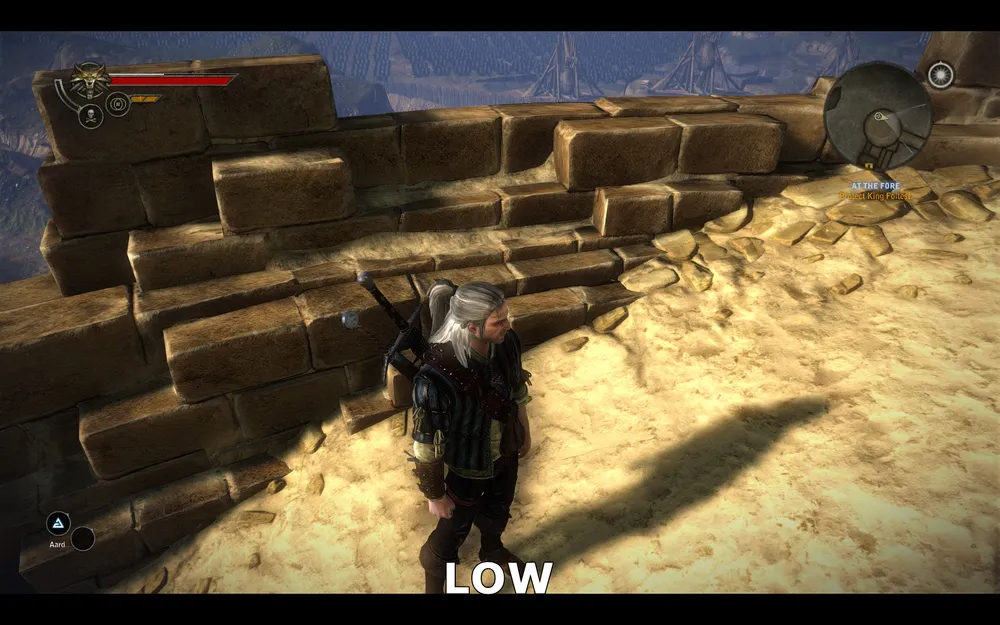
Low quality
The above screenshots show the difference between best and low shadow quality - as you can see, there are virtually no differences.
The graph showing the performance impact of this parameter is shown below:
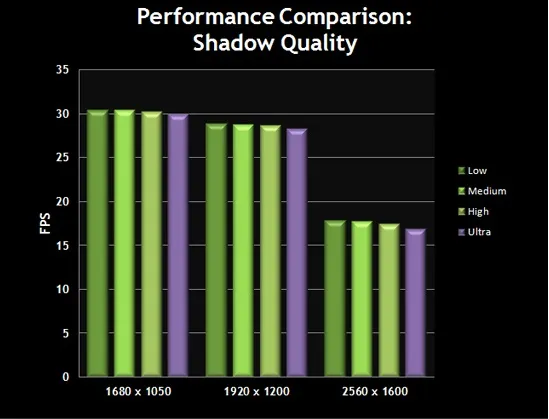
The graph shows that the impact on performance is also minimal. Therefore, you can set shadow quality to a low value for improved performance without sacrificing image quality.
Shadow Light Quality
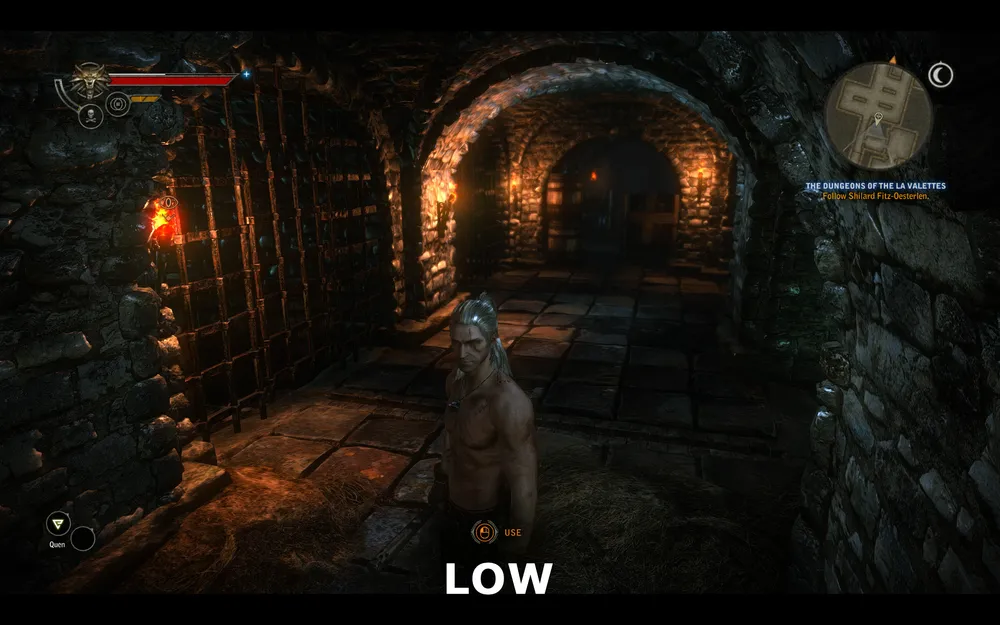
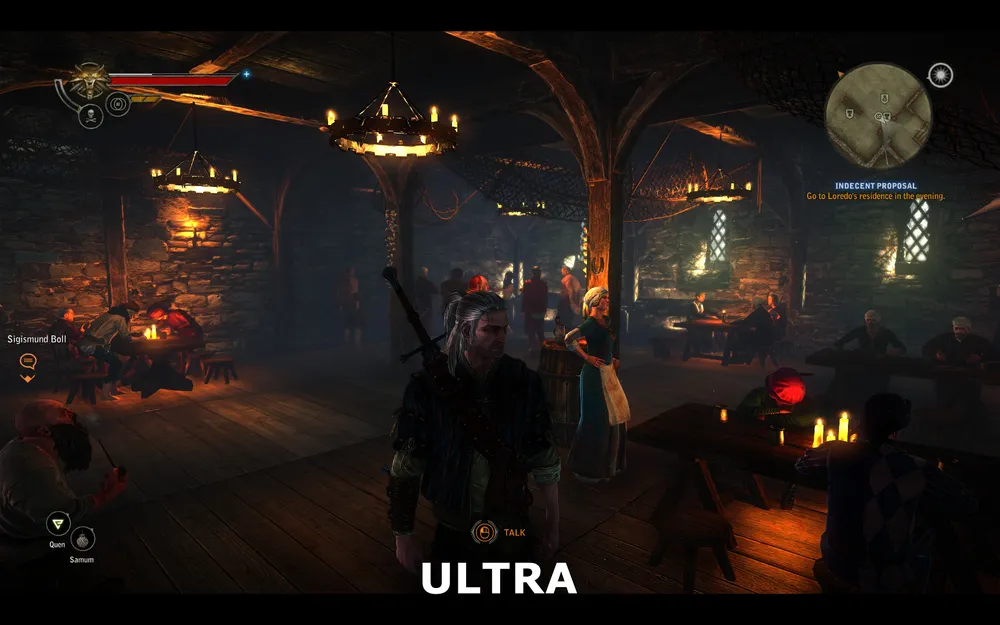
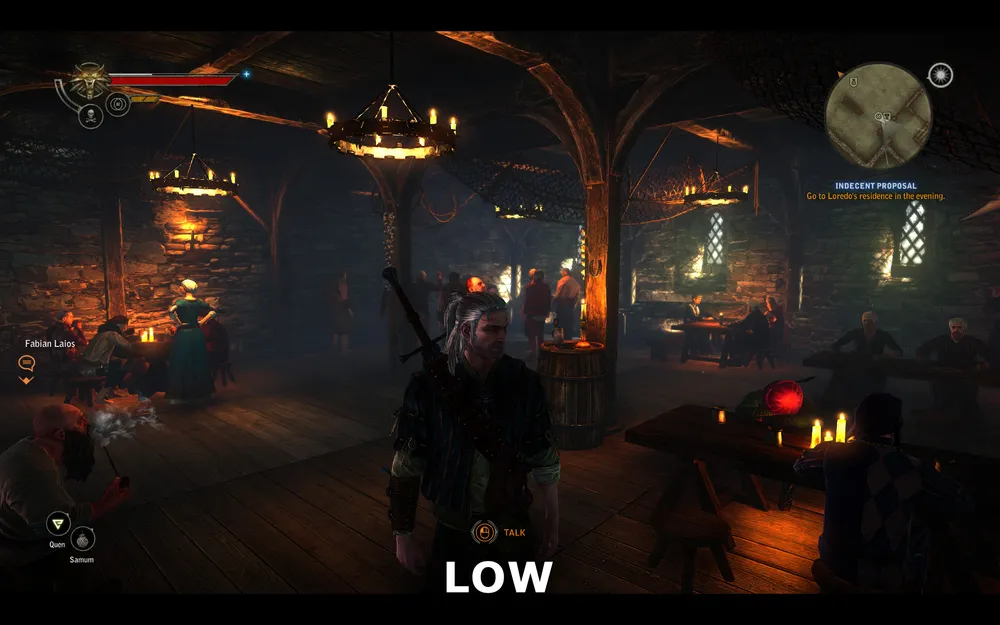
This parameter sets a cap on the maximum number of light sources that can cast shadows simultaneously. In places with multiple dynamic light sources, this may affect performance.
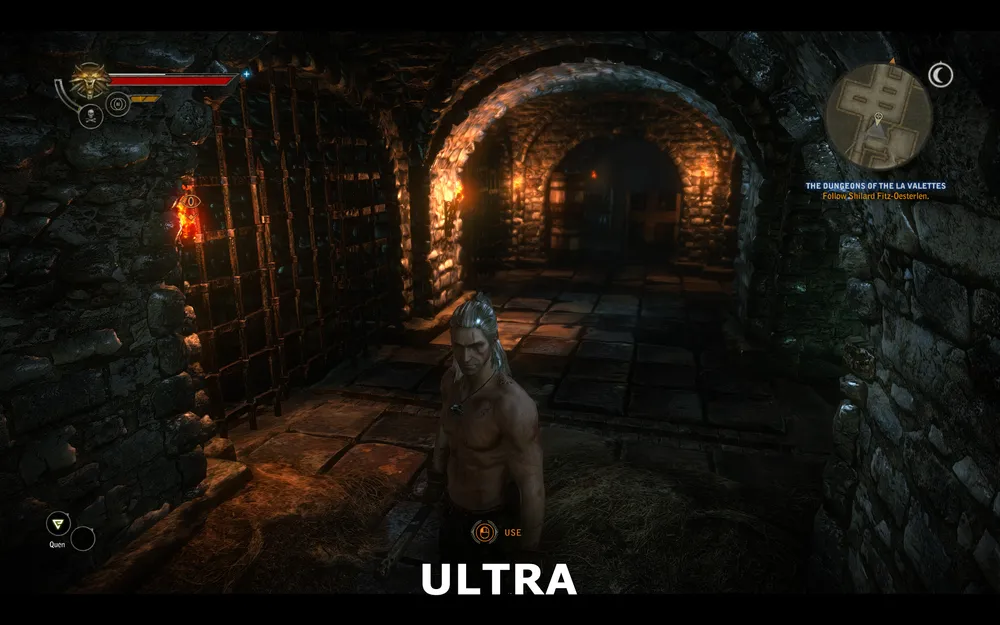
Best quality
Low quality
Best quality
Low quality
The two pairs of screenshots above show that, regardless of whether quality is low or best, there is no difference. Lowering this parameter can increase FPS, especially during combat, when magical effects may create new dynamic light sources that can add shadows. Therefore, you can lower this parameter without any serious impact on image quality.
The performance impact of this parameter is shown below:

The graph shows that the performance impact is minimal, except for certain moments. Again, you can set this option to a low value since it may increase performance without any significant loss in image quality.
Level Distance, Bloom, Light Rays, and Anti-Aliasing
Level Distance
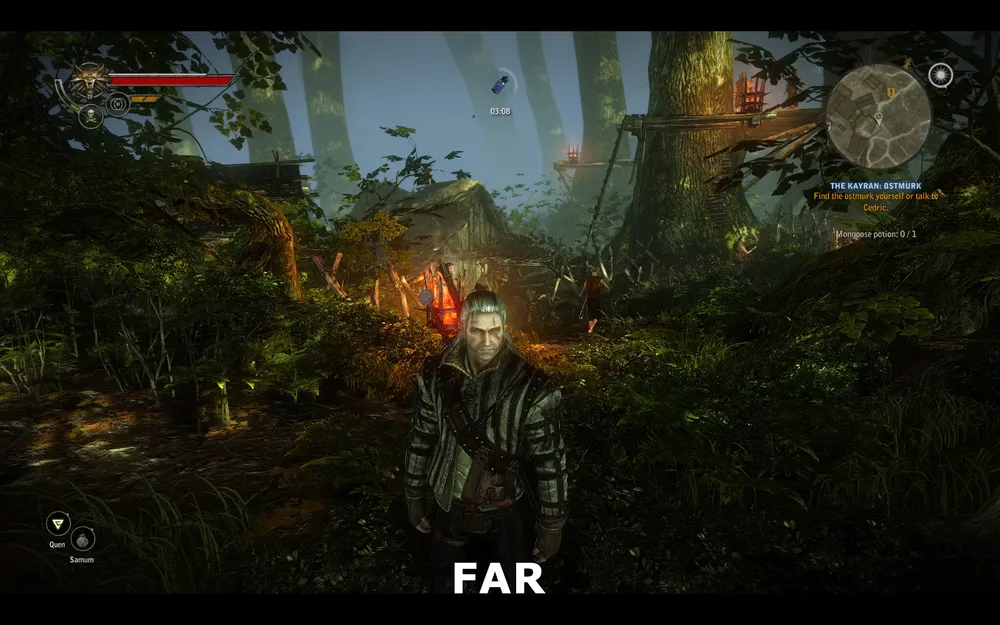
This parameter is responsible for the detail of distant objects. The higher its value, the further the surrounding world will be rendered. Lowering this parameter can significantly increase FPS.
Long distance
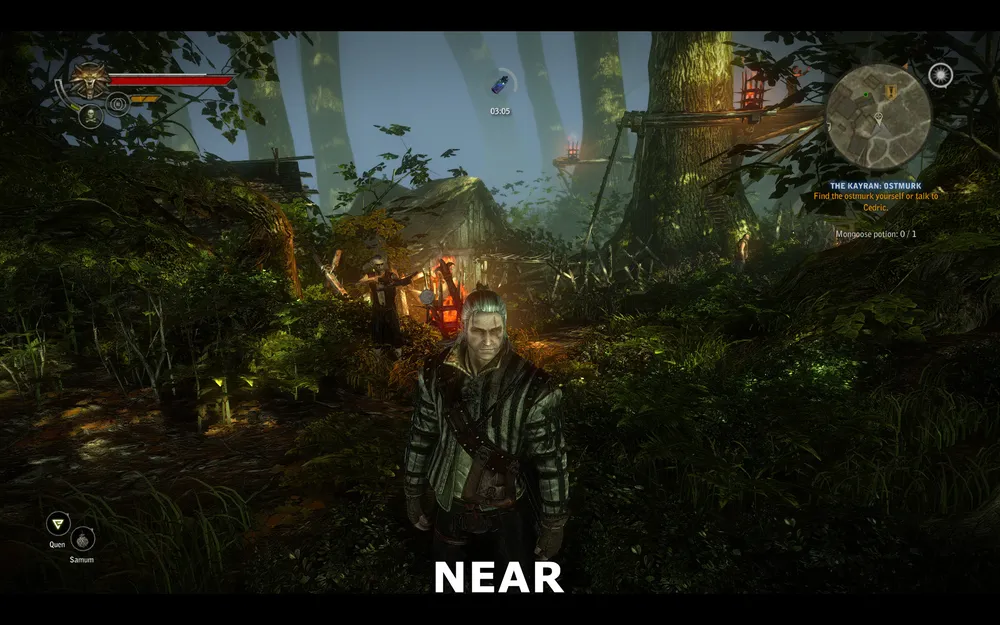
Medium distance
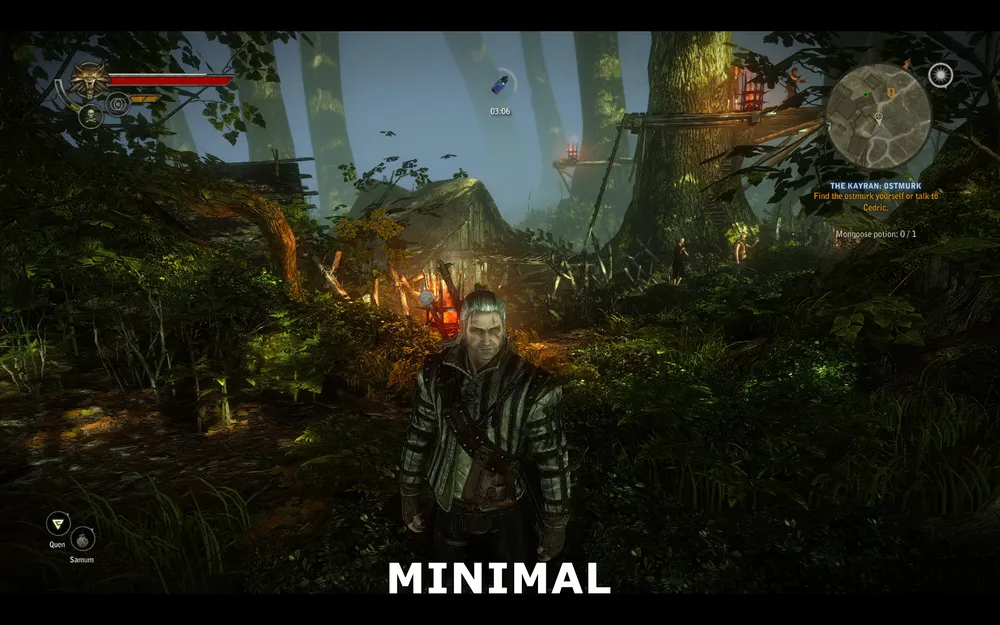
Very close distance
The above screenshots show the difference between long, medium, and very close distances. Compare the screenshot of long and close distances - the most significant difference is in the foliage. At very close distances, much of the distant foliage disappears. However, even close to Geralt, the textures of the leaves become less complex. Look at the branches and trunk of the tree to the left of Geralt. As you can see, their detailing has significantly decreased on minimal settings. However, it should be noted that there is almost no difference between normal and long distances.
The performance impact of this parameter is shown below:
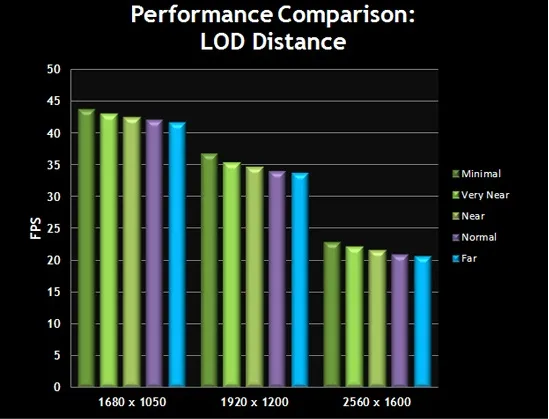
The graph shows that as the parameter is reduced, performance increases. Given the performance increase when transitioning from long to normal distance with minimal loss of image quality, those needing performance are advised to set the parameter to normal.
Bloom
When this parameter is enabled, bloom lighting is activated in the game, adding a fog-like effect to the game world. Considering that this setting has minimal performance impact on most systems, whether to enable this parameter is up to you.
The performance impact of this parameter is shown below:
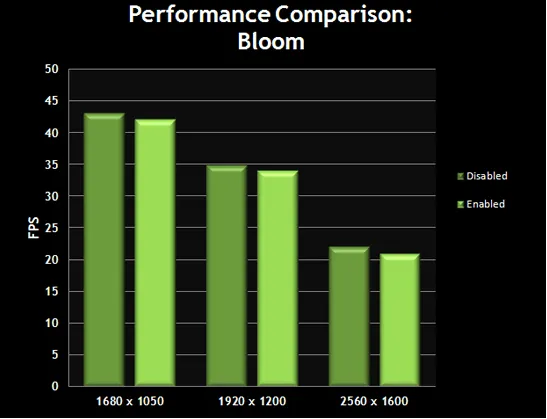
The graph shows that changes in the "bloom" parameter do not significantly influence FPS. If you do not like the bloom effect or need frames per second, you can disable it.
Light Rays
When this parameter is enabled, bright sunlight creates rays of light that pass through objects. The best example of this can be seen in a forest when sunlight seeps through the branches of trees. Visually, this is a very beautiful effect that creates a special atmosphere in the game, but it also impacts performance.
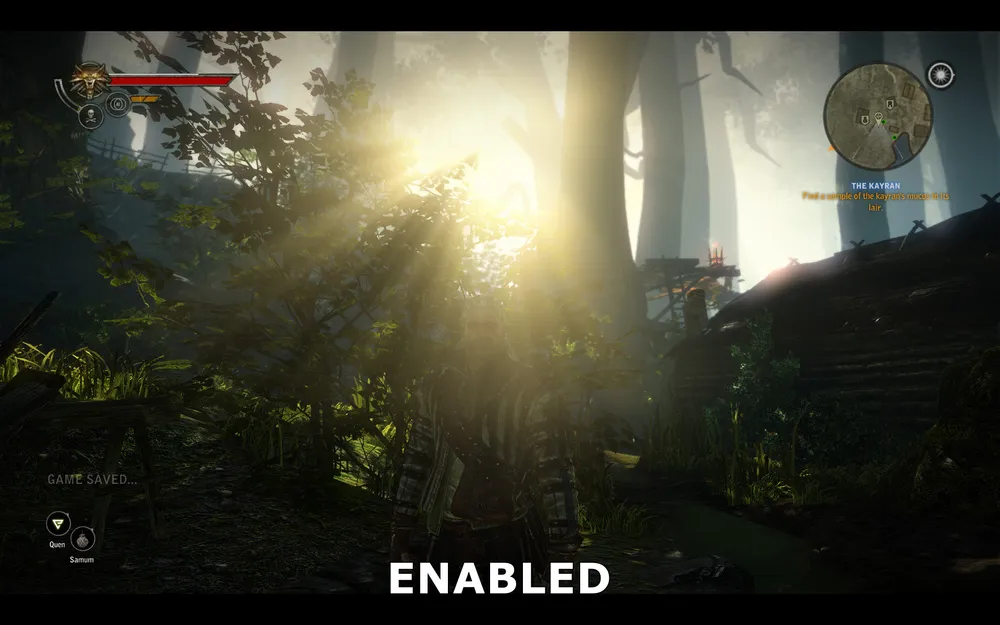
Light rays enabled
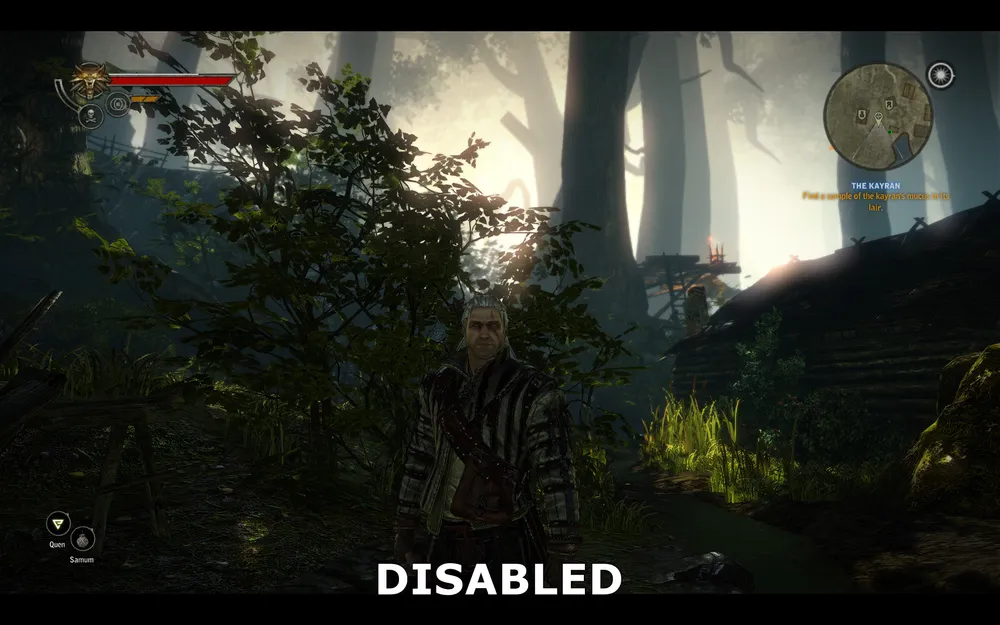
Light rays disabled
The screenshots show how sunlight passes through branches and bushes. With the parameter enabled, we see many individual rays of light; with it disabled, there are no rays, and the overall brightness becomes darker.
The performance impact of this parameter is shown below:
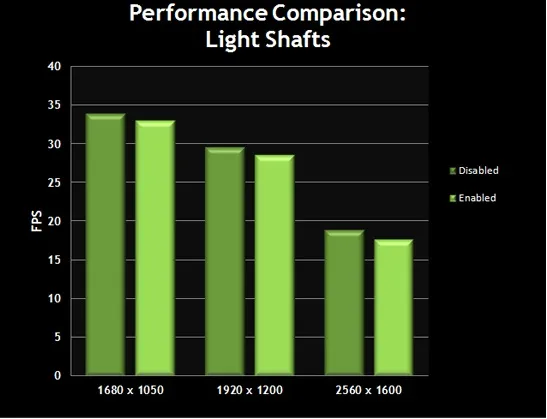
The graph shows that enabling light rays slightly decreases performance; however, in some cases, the impact on performance can be quite strong. Choose what is better for you - adding realistic effects or performance gain. If you notice stuttering while wandering through the forest, it is recommended to disable this parameter.
Anti-Aliasing
Anti-aliasing is a method used to reduce jagged edges in computer graphics. In the game, it can be enabled, but we cannot set specific values such as 2x, 4x, and so on.
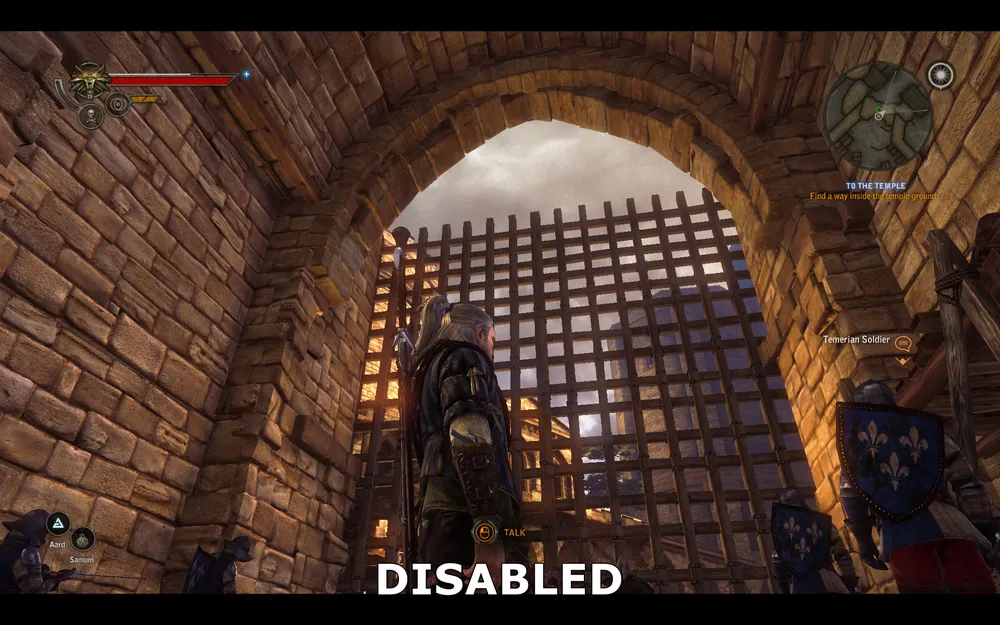
Anti-aliasing disabled
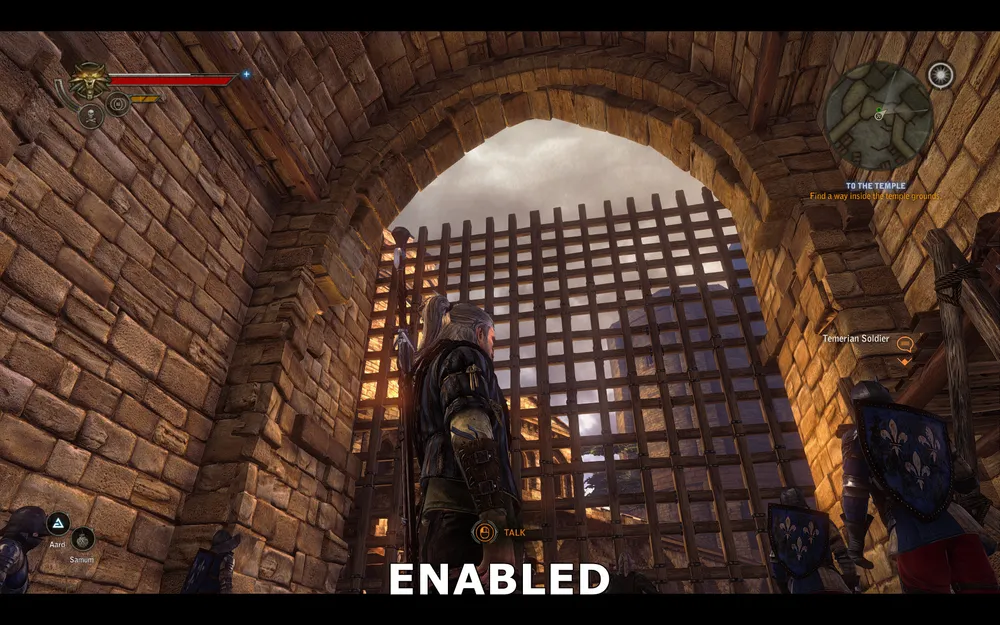
Anti-aliasing enabled
The above screenshots show that when anti-aliasing is disabled, jagged edges are visible on the grid, especially noticeable on the horizontal bars at the top. When anti-aliasing is enabled, the jaggedness decreases significantly, making the picture smoother. The screenshots also confirm that when anti-aliasing is enabled, the surface textures are slightly sharper and more detailed than when it is disabled, thus anti-aliasing not only reduces jaggedness but also enhances image detail.
The performance impact of this parameter is shown below:
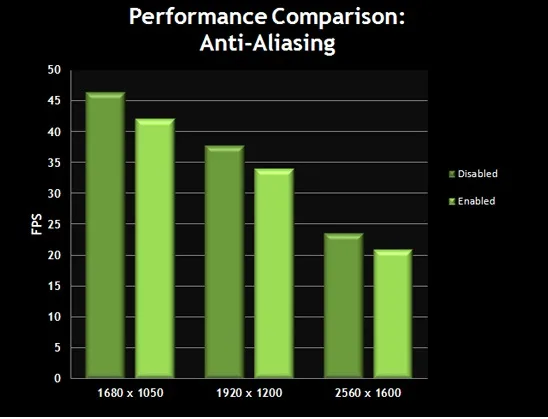
The graph shows that with anti-aliasing enabled, performance decreases. If you need performance and not a luxurious image, it's better to disable this parameter.
Motion Blur, Depth of Field in Game, Vignetting, and Rain
Motion Blur
If this option is enabled, we will be able to see a special effect in the game - screen blur at certain moments. Do not confuse this with the blurriness that occurs when quickly turning the camera - this is the "motion blur" effect, which will be discussed further.
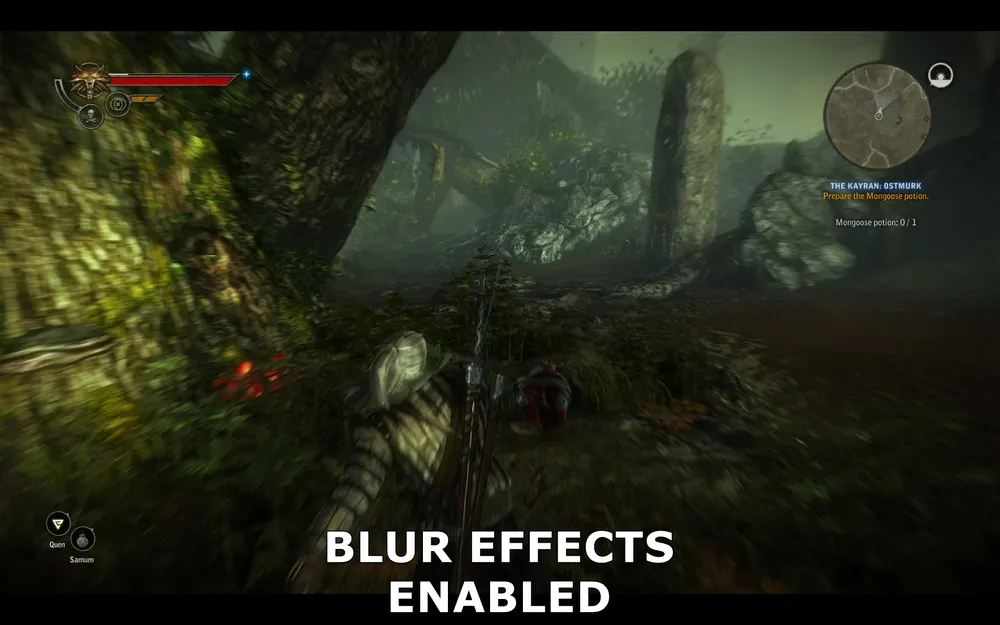
It is difficult to display this effect in a screenshot, but I managed to do it when Geralt was caught in a trap. Blur is used to indicate Geralt's disorientation as he was wounded. This effect is most noticeable at the edges of the screen. This option is not used very often in the game, so disabling it will not heavily affect image quality.
The performance impact of this parameter is shown below:
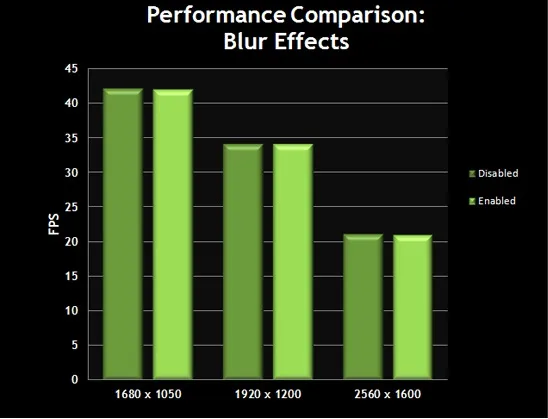
The graph shows that when the blur effect is enabled, the frame rate slightly drops. In principle, this is not critical, but if, during a fight, you end up in a trap, causing mouse response delays or other issues, we recommend you disable this parameter.
Depth of Field in Game
Depth of field in the game represents an effect that makes foreground objects more detailed and sharp, while background objects appear more blurred and hazy. It is used to give a sense of depth to the image. In The Witcher 2, there are three separate settings to control the depth of field - one affects depth of field during regular gameplay, while the other two (depth of field in cinematics and depth of field in scenes) relate solely to the use of the parameter in cutscenes and dialogues. Disabling depth of field in the game can make the image much sharper and also improve performance by reducing the cinematic effect.
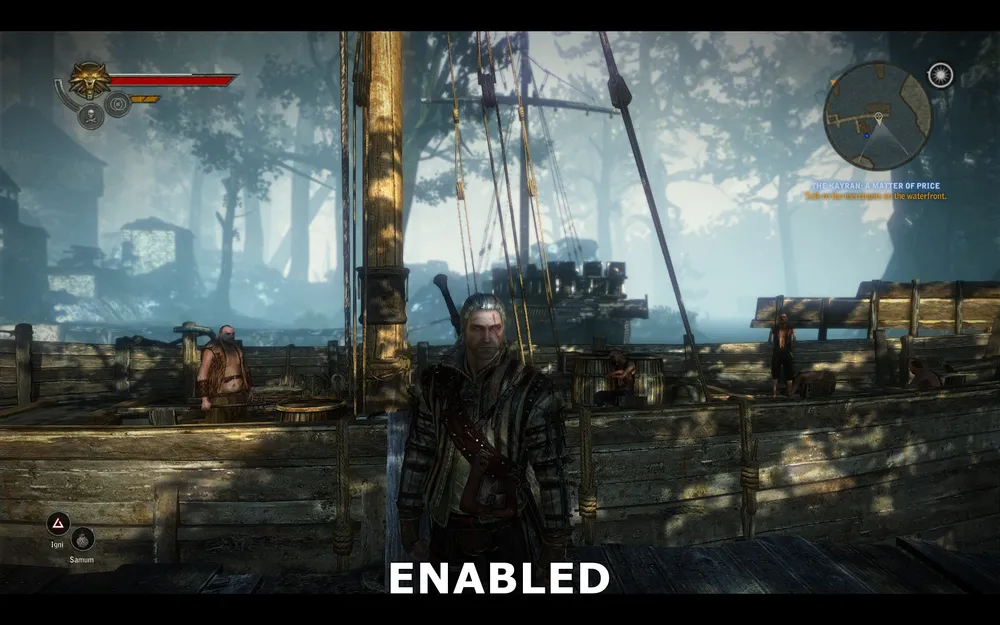
Effect enabled
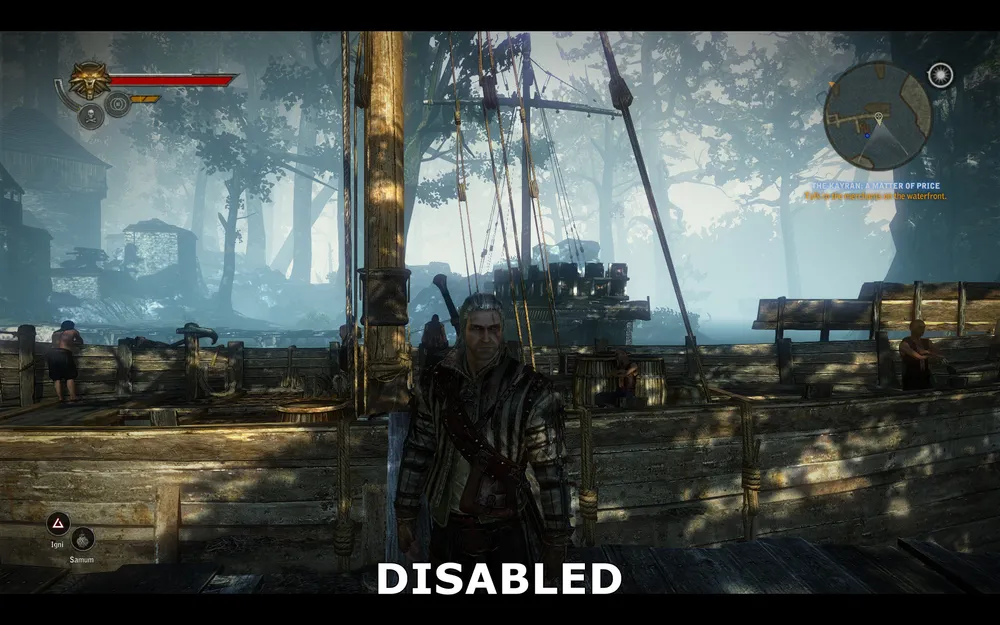
Effect disabled
The above screenshots show that with the depth of field disabled, trees and buildings far from Geralt have become a bit sharper. The ship behind Geralt also becomes clearer, and the image generally looks much less hazy. However, using the depth of field effect makes the relatively gray image visually more appealing by adding some clarity to the background.
The performance impact of this parameter is shown below:
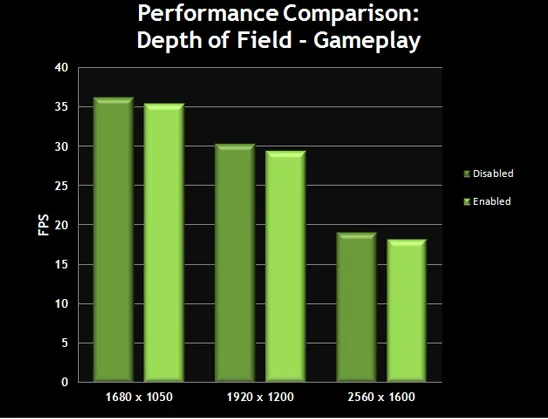
The graph shows that with the depth of field in the game disabled, the FPS increases minimally. This effect is applied throughout the game; disabling it will mean that you will get a slight increase in average frame rate. Many people keep this parameter enabled, so the decision is up to you.
Vignetting
If this parameter is enabled, it darkens the edges of the image slightly. This photographic method is known as vignetting and in The Witcher 2 serves simply as an effect, having no impact on performance.
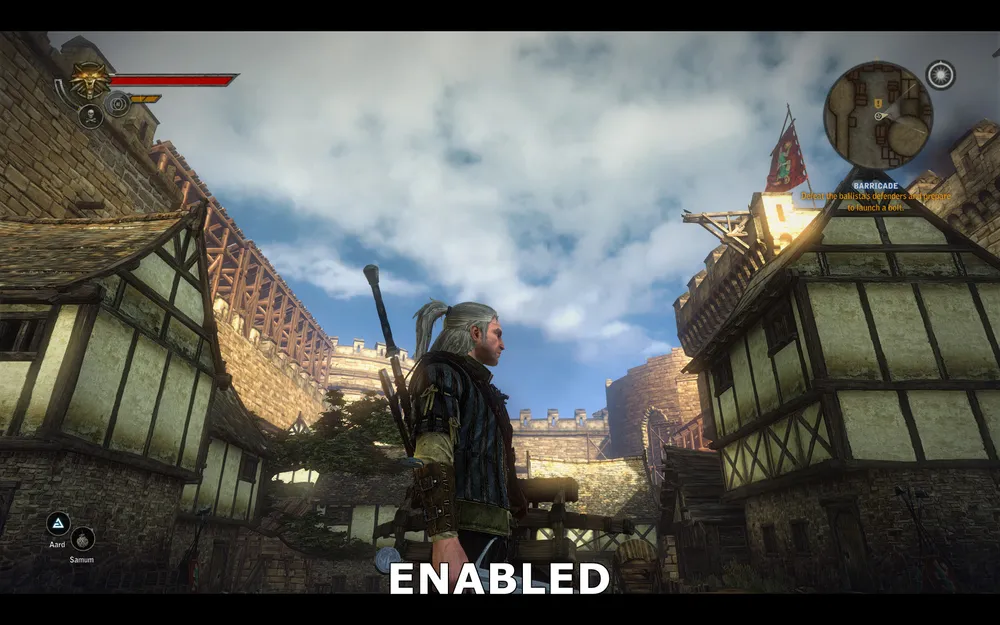
Vignetting enabled
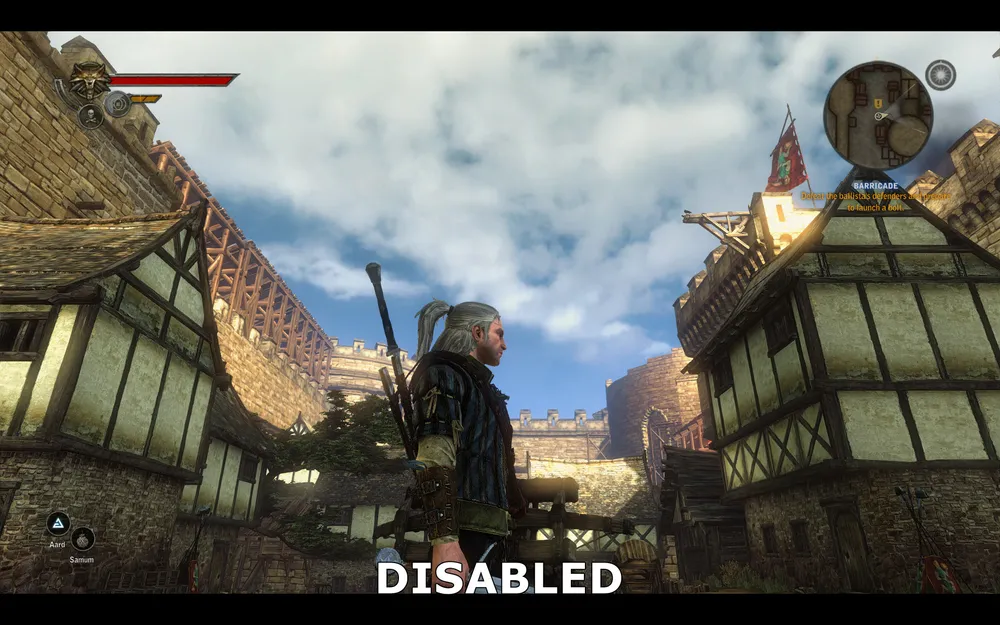
Vignetting disabled
In the above screenshots, the vignetting effect is shown. If this feature is enabled, the edges of the image will become darker, but it is noticeable only when comparing it with the screen where this effect is disabled. Again, the effect does not impact FPS, and if you do not want to see it in the game, you can disable it.
Rain
This parameter is responsible for the appearance of wet surfaces when it rains. This is a barely noticeable effect, and given that rain does not often occur in The Witcher 2, its action is hard to notice.
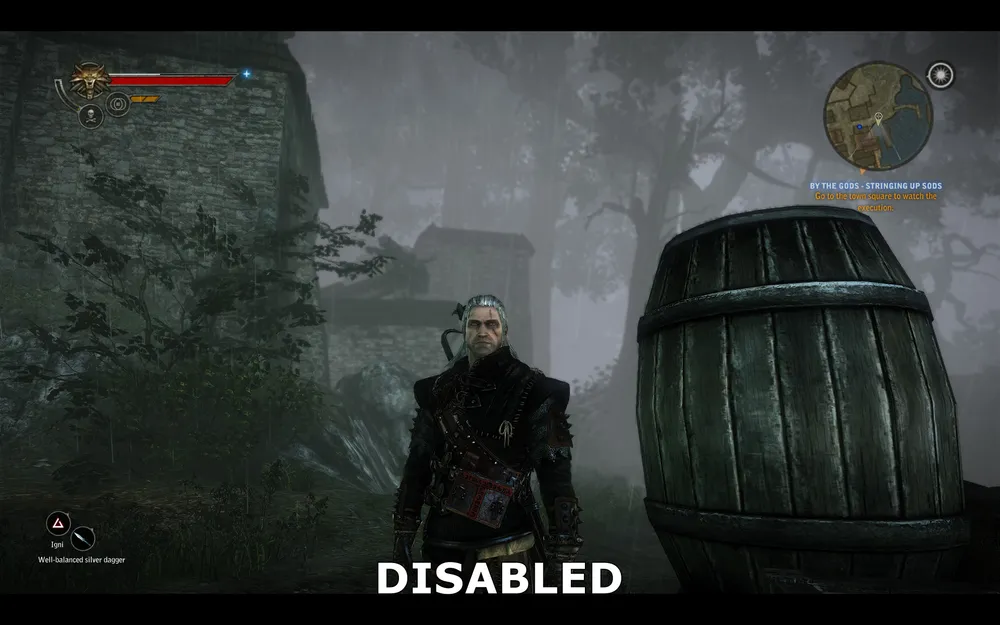
Parameter disabled
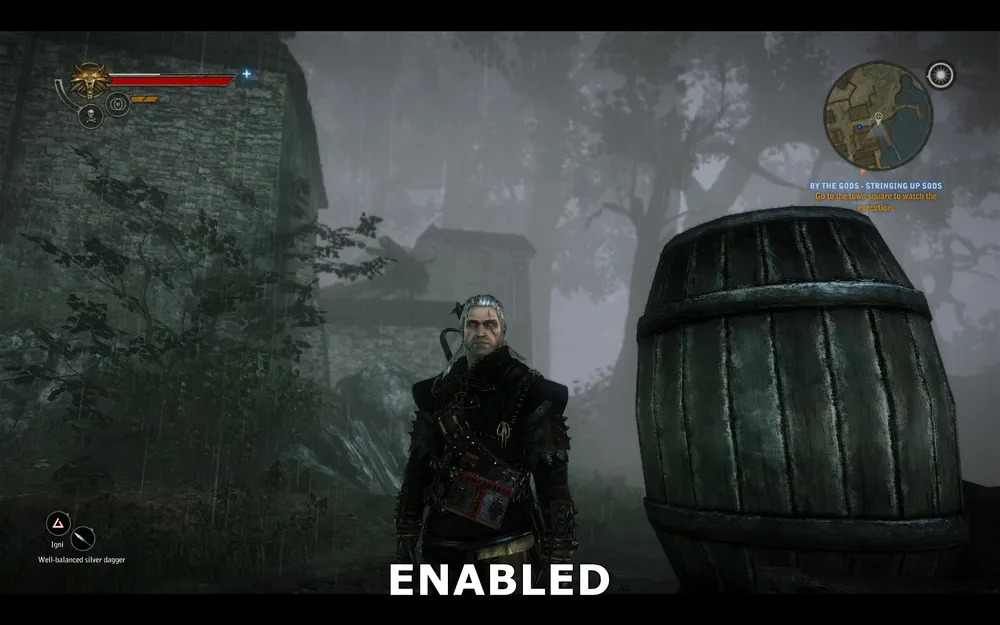
Parameter enabled
In the above screenshots, I tried to demonstrate the effect of this setting, but as this is an animated effect, it is challenging to properly capture it in a screenshot. When the parameter is enabled, water will drip down some objects, such as the barrel on the right. If this effect is disabled, rain will still fall as before, but objects will not appear wet from the rain.
The performance impact of this parameter is shown below:
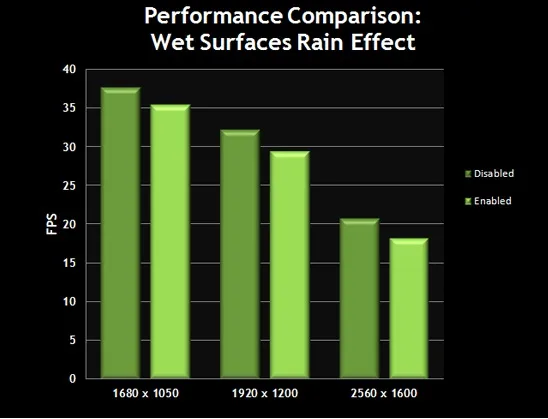
The graph shows that while there is an impact on performance, it is not strong enough, considering that rain is not a common phenomenon in the game. If you are not chasing FPS and do not notice stuttering during rain, you can enable the effect for more realism.
SSAO, Motion Blur, and More on Depth of Field
SSAO (Screen Space Ambient Occlusion)
Enabling this parameter activates Screen Space Ambient Occlusion (SSAO), an advanced version of Ambient Occlusion, an effect that darkens areas to enhance the quality and realism of shadows. In The Witcher, SSAO can improve shadows; however, it will significantly impact performance.
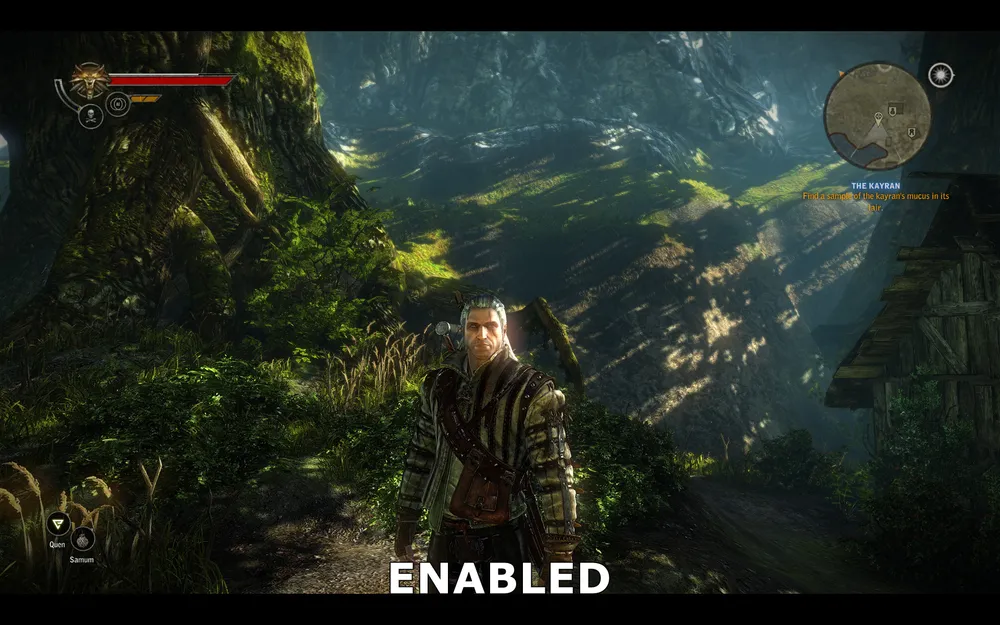
Parameter enabled
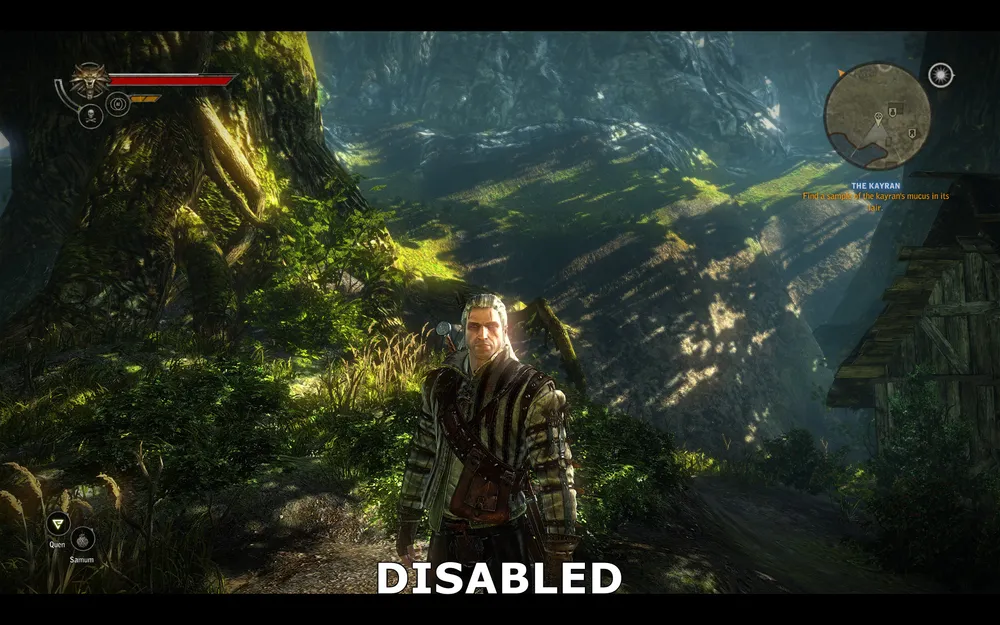
Parameter disabled
The above screenshots show the difference between SSAO enabled and disabled. At first glance, it seems that one screenshot simply has more shadows than the other. However, in reality, SSAO parameters are applied in specific areas. Look at Geralt - SSAO adds shading around his facial edges and also adds more depth. Looking at his right hand and torso, you’ll see subtle shading that makes Geralt's model more realistic. The plants and branches on Geralt's left are also dressed up by SSAO, now showing more than just bright or dark, but shaded. As a result, SSAO softens and blends shadows; it is not too noticeable, but definitely improves graphics with more realistic shading.
The performance impact of this parameter is shown below:
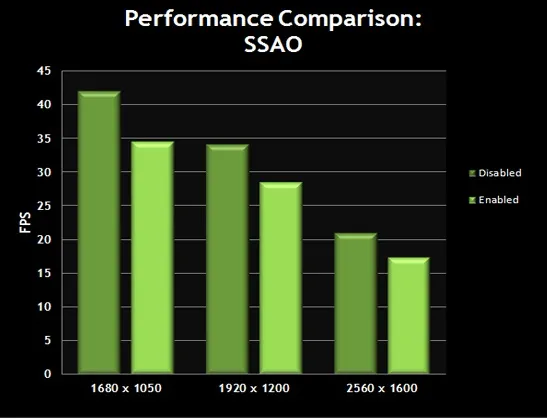
The graph confirms that SSAO has a significant impact on performance. Add to this the fact that this effect is not too noticeable; therefore, for many, SSAO is one of the first parameters to turn off (along with extreme quality), in favor of performance without much detriment to image quality.
Motion Blur
This parameter controls the use of motion blur. It is most noticeable when you rotate the camera. Enabling motion blur may reduce FPS when the effect is noticeable.
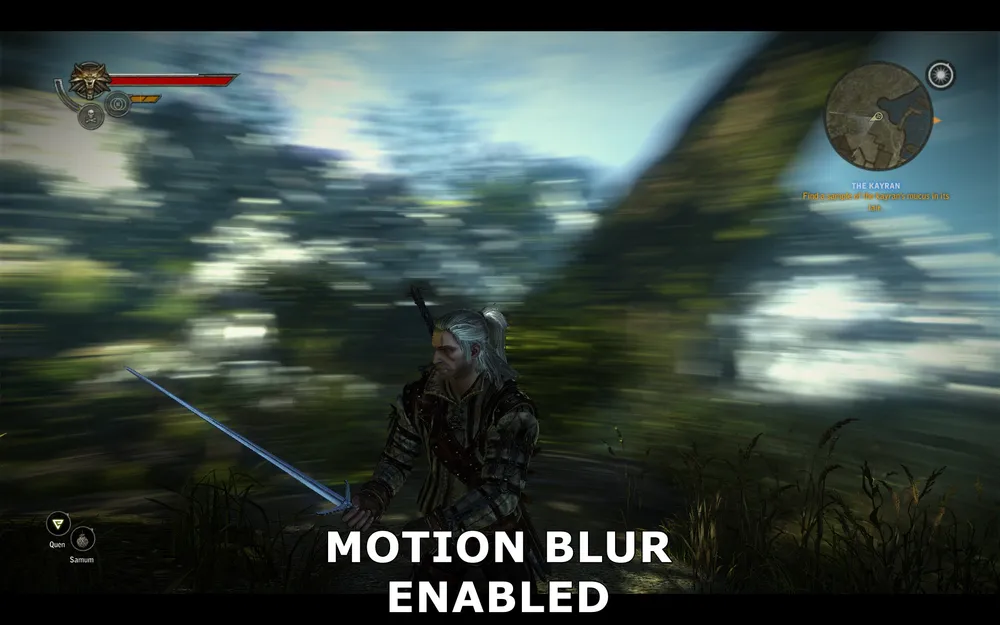
The screenshot shows a moment when the camera quickly rotates around Geralt, so this is a bit of an exaggerated example of how motion blur looks. However, you can see that while Geralt and the ground beneath him remain sharp, the surrounding background becomes heavily blurred.
The performance impact of this parameter is shown below:

The graph shows that with motion blur enabled, performance drops. This is especially unpleasant during combat when you need to react quickly, and thus quickly rotate the camera - your FPS will drop just when you need it most for quick reactions. This may also lead to additional stuttering whenever you move the camera abruptly. Therefore, if you do not have a top graphics card, it may be better for you to disable motion blur to increase FPS and ensure greater smoothness in such situations.
Depth of Field in Cutscenes
Depth of field in cutscenes (DOF) was described earlier in the "Depth of Field in Game" section. This option makes cutscenes in the game look like a film. Due to the additional GPU load, this effect reduces performance, and this is one of the reasons why some people experience stuttering during cutscenes. See below for a comparison of screenshots.
Depth of Field in Scenes
This option controls the use of sharpness in cutscenes and dialogues. However, keep in mind that when the "depth of field in scenes" option is disabled, but the depth of field in cutscenes is enabled, the effect will still be present. Therefore, you should use both of these parameters together (for example, either disable both or enable both).
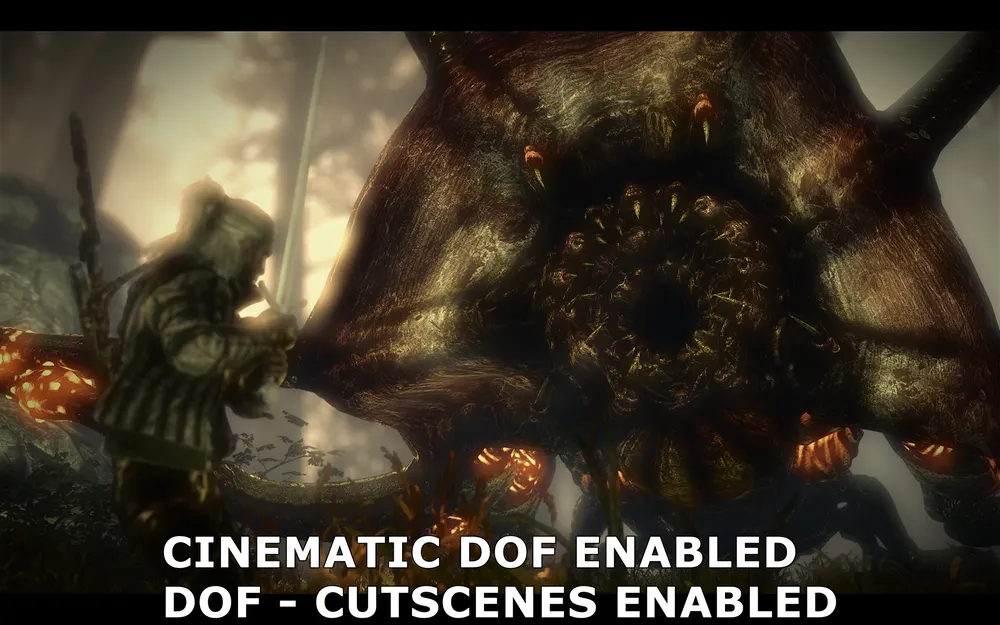
Depth of field in cutscenes and scenes enabled
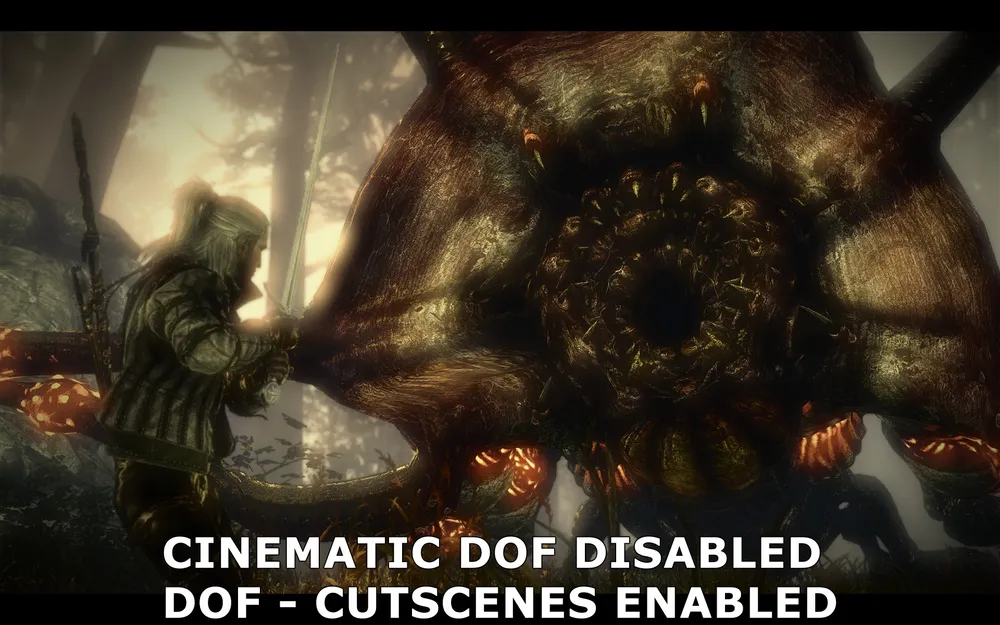
Depth of field in cutscenes disabled, in scenes enabled
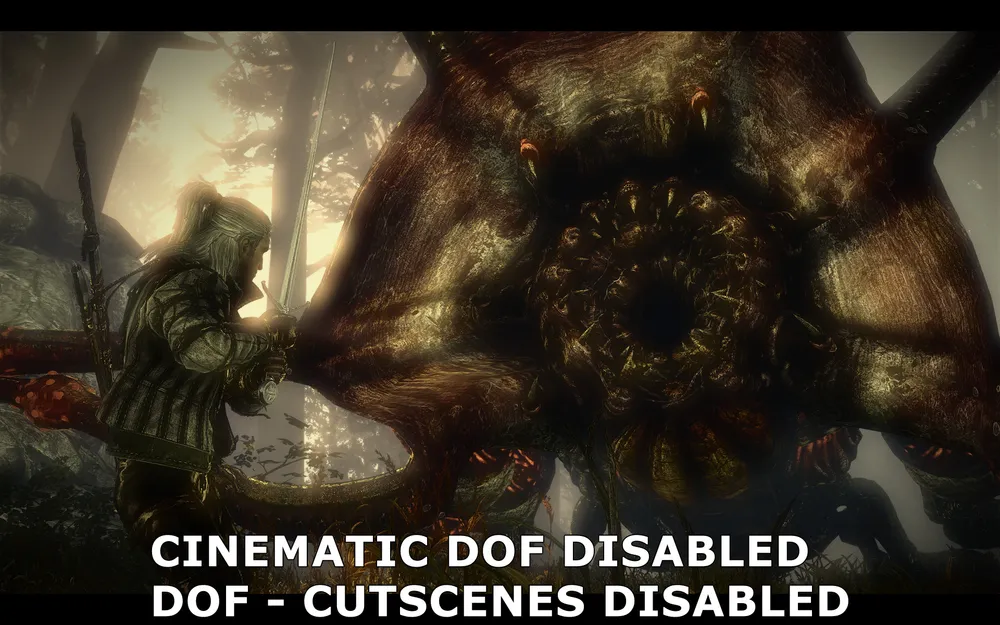
Depth of field in cutscenes and scenes disabled
Disabling depth of field in scenes will be pointless if depth of field in cutscenes remains enabled; the above screenshots show that initially both parameters are enabled, then only the depth of field in cutscenes is disabled, and finally, both parameters are turned off, successfully removing all blur effects. As you can see, when the depth of field in cutscenes is disabled, some blurring effects still apply; however, Geralt's figure, as well as the trees and rocks, become clearer. When both effects are disabled, the blurring completely disappears, and the image becomes sharper and clearer (except for a little blur from bloom lighting in the upper left corner).
While depth of field in cutscenes might seem impressive, many may not appreciate it. If you prefer a little blurring in cutscenes and dialogues, disable depth of field in cutscenes and enable it in scenes. If you want to completely remove the blur effect, disable both options.
The performance impact of this parameter is shown below:
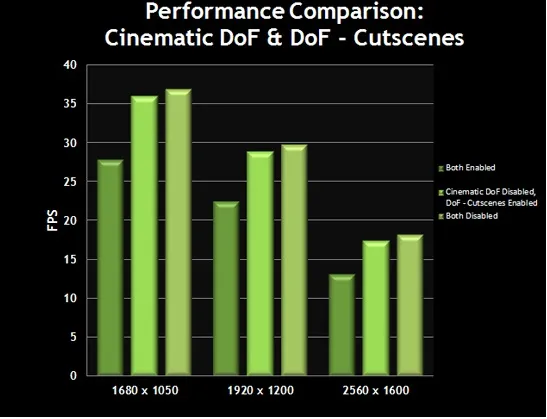
The graph shows that cutscenes and dialogues function better if depth of field in cutscenes is disabled, and even better if depth of field in scenes is also disabled. If you enable only depth of field in cutscenes but disable that in scenes, the difference in image quality will be minimal, which is not recommended.
Dangling Object Limits, Extreme Quality, Decoration
Dangling Object Limits
This parameter allows objects like Geralt's hair and parts of clothing to move realistically. Enabling this option sets a cap on how many such objects can move. Even if the parameter is disabled, Geralt's hair will still move, as will other objects. The option is intended to reduce the load on the CPU.
The performance impact of this parameter is shown below:
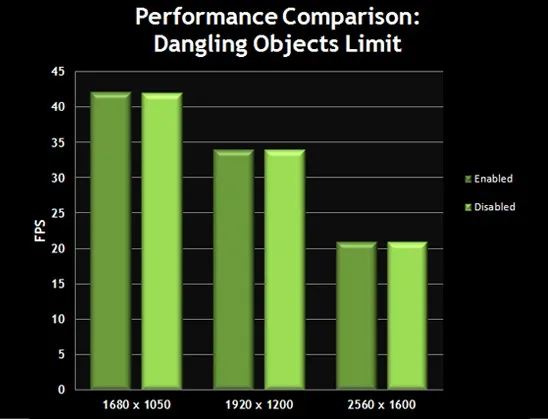
The graph shows that there are absolutely no changes in FPS. Only weak dual-core processors may benefit from this option. If you have a powerful processor, feel free to disable this option.
Extreme Quality
This parameter enables a special mode that improves image quality by processing the scene multiple times before displaying it in its final form. The extreme quality effect results in clearer textures and better detail. However, this option requires not only a high-end processor but also a very powerful graphics card.
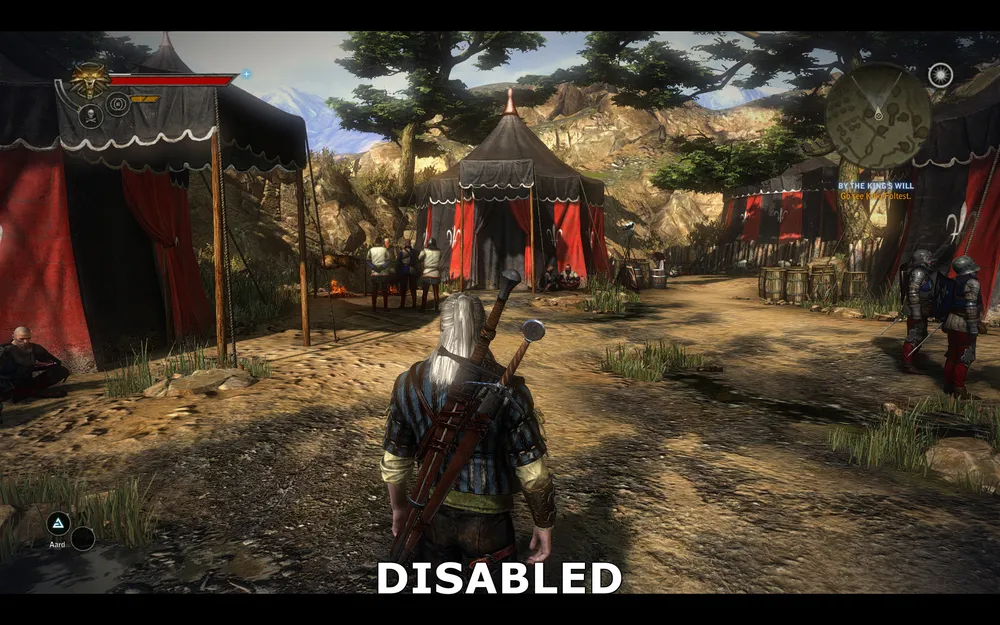
Extreme quality disabled

Extreme quality enabled
In the above screenshots, we see a comparison of the image with extreme quality enabled and disabled. The key differences with extreme quality enabled are the image becoming more detailed - the textures of dirt and trees are more intricate, while the ground, grass, and bushes have clearer textures. Additionally, the slight jaggedness that was not eliminated previously is now finally smoothed out. However, it is worth noting that the textures of Geralt's clothing and his sheath have become slightly less clear. Furthermore, the fabric of the tent, especially in dark areas, is rendered less detailed.
The performance impact of this parameter is shown below:

The graph shows that extreme quality rank as one of the most demanding settings in The Witcher 2, as FPS drops by 60% at any resolution. In reality, there isn't a single graphics card capable of running smoothly with extreme quality enabled at maximum settings. Extreme quality is primarily intended for multi-GPU setups. Given that this setting provides only a minor improvement in image quality with such a performance drop, extreme quality is the first option on the list to disable.
Decoration
Decoration is responsible for parameters such as blood splatter on the ground, on the sword, or on Geralt's face. Turning off the option will reduce realism but may boost performance on weaker processors. Regardless of the chosen value, all effects will soon disappear.
The performance impact of this parameter is shown below:
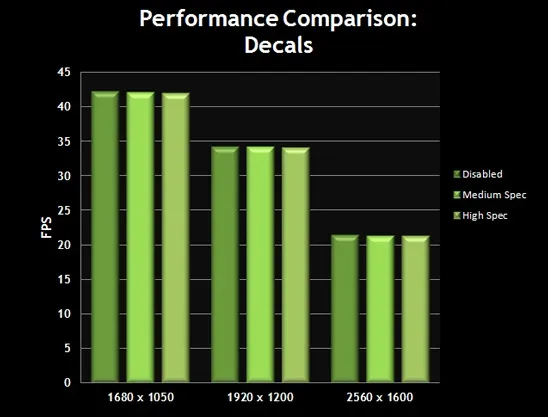
As you can see, on most systems, disabling or lowering the setting value has virtually no impact on performance. We recommend disabling the parameter only on weak computers if you want to gain a bit of FPS, especially in large battles where there is a lot of blood.
This concludes our review of the settings available in the Configuration Tool. Next, we will explore Advanced Settings of The Witcher 2.
Advanced Settings
PC gamers are fortunate to have an advanced settings editor called the Configuration Tool. Properly configuring these settings will allow you to play with a balance of performance and image quality.
However, for those who want to go further, The Witcher 2 also offers a range of more advanced settings. This involves editing INI files. The file we need (user.ini) is located in the category \My Documents\ Witcher 2\ Config\. Make a backup of this file, then open it in any text editor, for example, notepad. Most settings in the INI file are modified in the Configuration Tool, but there are a few settings that can only be changed in this file:
DanglesLimiter=0
This parameter is the same as dangling object limits in Configuration Tool. However, here you can control its value more precisely. A value of 0 is the maximum, imposing no restrictions on the edges of objects. A value of 1 means restrictions will only apply to Geralt, and a value of 2 will limit the movement of all dangling objects.
TextureMemoryBudget=600
This setting corresponds to the "texture memory size" parameter in Configuration Tool. It sets the maximum amount of memory that The Witcher 2 allocates for storing textures. You can assign your value in megabytes for this parameter. There are no restrictions for this parameter, but remember that setting a very high value might lead to issues - see the "Texture Memory Size" section discussed above.
FoliageDistanceScale=0.5
MeshDistanceScale=0.7
The above values control the level of detail in the game, that is, these parameters correspond to the "level distance" in Configuration Tool. The smaller the values of these parameters, the less detail will be rendered for objects far from Geralt. These values will help you control the level of detail more precisely, and you can also raise the parameters above the standard maximum of 1.2 for further increases in distance detailing. Note that the default FoliageDistanceScale value is not present in the user.ini, so you must add it there yourself. Additionally, there are no restrictions for this setting.
MaxCubeShadowSize=256
MaxCubeShadowCount=1
MaxSpotShadowSize=512
MaxSpotShadowCount=3
The above values are related to shadow quality in the game. Shadow settings in the Configuration Tool seem to misrepresent their values. As a result, even if you set shadow quality to the best setting, in the user.ini file, values equivalent to the low level remain. You can manually edit these parameters as desired.
It’s important to note that if you change any values in the user.ini, and then change any value in the Configuration Tool, it may overwrite/reset all your manually edited parameters. First configure everything in the Configuration Tool, and then edit user.ini.
Mods
The Witcher 2 has proven popular with the PC community, leading to a number of mods being released that alter various aspects of gameplay and graphics. You can download several of these mods for free from here, but keep in mind that they are not officially supported, and remember to read each mod's instructions carefully.
Conclusion
With proper system optimization and the game configured for your setup using the Configuration Tool, The Witcher 2 should run relatively smoothly on your system. If you still experience issues, visit the official site of the game and read the official FAQ that outlines solutions to current issues.
In terms of gameplay advice, keep one important thing in mind: The Witcher 2 is not a slasher. It is an RPG, which means you must use strategy to learn practically all the intricacies of the combat system, signs, potions, and combo hits. The battles may initially be frustrating, but over time they become easier, although it is always challenging to fight more than one opponent even at normal difficulty. Read the guide carefully, frequently use quick save (F5), and don’t get discouraged if you constantly die in the prologue. The Witcher 2 offers an extremely rewarding experience, and thus is worth the effort spent on it.
Source: Geforce.com