
Guide to Configuring Oblivion.ini
*I found a very detailed guide on configuring Oblivion.ini - I think the information in it will be useful for many. Plus, you can try out this program.
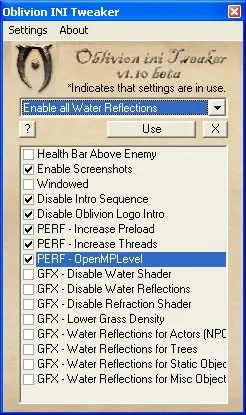
Open the Oblivion.ini file in any text editor, which by default is located in Windows XP at C:\Documents and Settings\Username\My Documents\My Games\Oblivion (you can use the standard "Notepad" for this purpose). You will see many lines with parameters assigned certain values. The file is logically divided into sections, whose names are highlighted with square brackets on both sides. To leave comments (for example, write the original value of a modified parameter next to it), simply place a ";" (semicolon) at the beginning of a new line. Keep in mind that if the game starts behaving improperly (for example, frequently "crashing" to the desktop) after editing the file, deleting the Oblivion.ini file is enough. Upon the next launch of the game, it will be recreated (unless, of course, you have deleted the Oblivion_default.ini file located in the game folder).
So, let’s get started.
Increasing Performance
Section "General"
bRunMiddleLowLevelProcess=1
Turning off (value "0") this parameter assigns high priority to the game process in the operating system. This means that all of the computer's resources will be primarily allocated to the game, and only then to other running programs. This increases performance, but can create certain issues if the game "hangs".
uInterior Cell Buffer=3
This parameter value denotes the number of the most recently visited interior locations that remain in RAM for faster reloading. Since interior locations load quite quickly anyway, I recommend a value of "1".
uExterior Cell Buffer=36
Similar to the "uInterior Cell Buffer" parameter, but it affects the number of external locations. The value of "36" is recommended for 512 MB of RAM, "72" for 1 GB, and "144" for 2 GB. This value is automatically adjusted by the game if the value of the "uGridsToLoad=5" parameter has changed since the last game launch.
bUseThreadedBlood=0
When using multi-core processors, enabling (value "1") this parameter makes location loading smoother.
bUseThreadedMorpher=0
When using multi-core processors, enabling this parameter makes location loading smoother.
bPreemptivelyUnloadCells=0
Enabling this parameter forces the game to unload unused data from RAM. However, it is not recommended to enable this parameter if your system has more than 512 MB of RAM.
iPreloadSizeLimit=26214400
Size of the cache stored by the game on the hard drive (see the parameter "bUseHardDriveCache" below). Optimal values are: for 512 MB of RAM - "26214400" (25 MB cache), for 1 GB of RAM - "52428800" (50 MB cache), for 2 GB of RAM - "104857600" (100 MB cache).
bUseHardDriveCache=0
Enabling this parameter allows the game to use the cache on the hard drive (without this, the parameter "iPreloadSizeLimit" is meaningless).
bUseThreadedTempEffects=0
When using multi-core processors, enabling this parameter makes loading locations smoother.
bUseThreadedParticleSystem=0
When using multi-core processors, enabling this parameter makes loading locations smoother.
Section "Display"
bLocalMapShader=1
Disabling this parameter will prevent the game from overlaying a "pencil sketch" effect over the local map, restoring its appearance to what was used in The Elder Scrolls III: Morrowind. This speeds up the opening of the local map.
iMaxDecalsPerFrame=10
The number of blood splatters that can be displayed on the screen simultaneously. It can be safely lowered to five if you haven't changed the value of the "fDecalLifetime" parameter (if you have increased it, you can leave it unchanged).
iShadowMapResolution=1024
or iShadowMapResolution=256
This parameter is responsible for the resolution of shadow maps cast by characters.
The standard value is "1024". The parameter can take values equal to a power of two: "256", "512", "1024", "2048"... The lower the value, the higher the performance and lower quality of shadows from characters.
When installing in Microsoft Windows XP Home Edition Service Pack 2 (Russian 32-bit version) patch 1.2.0416, the standard value ("1024") is changed to "256". Strangely, in the 32-bit Russian Microsoft Windows Vista Home Premium, the value does not change and remains "1024".
Changing the value to something other than "1024" can lead to a strange bug: when activating portals (doors, hatches...), the screen may turn completely black, sounds loop, and the game freezes to the point where only a reset helps. This bug only appears when using NVIDIA graphics cards (at least, there have been no reports of issues with ATi graphics cards). To get rid of this bug, simply correct the value back to the standard ("1024").
bAllow30Shaders=0
Enabling this parameter increases game performance on graphics cards supporting pixel and vertex shaders of the third revision (starting with NVIDIA GeForce 6*** and ATi Radeon X1***).
bLandscapeBlend=1
Disabling this parameter makes the distant (LOD) landscape less blurry. This slightly deteriorates the quality of its display (although, of course, this is a matter of taste), but it speeds up the loading of external locations a bit.
bUseWaterDepth=1
Disabling this parameter makes the water opaque. It helps eliminate graphical artifacts that occur when heavily increasing the "uGridsToLoad" parameter and reduces the load on the graphics adapter.
Section "Audio"
bDSoundHWAcceleration=1
Disabling this parameter prevents the game from using hardware sound acceleration. This lowers audio quality, but sometimes helps with frequent game crashes to the desktop.
bMusicEnabled=1
Value "0" disables music in the game. The music in the game is dynamic (meaning that the corresponding composition is loaded depending on the situation), so disabling it reduces the load on the hard drive and increases the speed of location loading. Additionally, it can sometimes help with frequent game crashes to the desktop.
iMaxImpactSoundCount=32
The number of sound channels used by the game. If your sound card supports more than 32, you can increase the value at the expense of performance. You can also try reducing the value to improve performance. In any case, it is recommended to use multiples of eight: "16", "24", "32", "48", "64"...
Section "Pathfinding"
bBackgroundPathing=0
Enabling this parameter makes location loading smoother.
Section "Havok"
iNumHavokThreads=1
The number of threads in which the game physics is calculated on multi-core systems. A value of "5" is recommended.
Section "GamePlay"
bSaveOnInteriorExteriorSwitch=1
Value "0" disables autosave during transitions between interior and exterior locations. Speeds up location loading. In addition, it sometimes helps with frequent game crashes to the desktop.
Section "BackgroundLoad"
bBackgroundLoadLipFiles=0
Enabling this parameter makes location loading smoother.
bLoadBackgroundFaceGen=0
Enabling this parameter makes location loading smoother.
bSelectivePurgeUnusedOnFastTravel=0
Enabling this parameter forces the game to purge unnecessary data from RAM when using the "Fast Travel" function.
Section "Grass"
iMinGrassSize=80
The larger the parameter value, the lower the density of grass and the better the performance. A value of "120" is recommended. Additionally, you can use a small modification called Low-Poly Grass.
Section "BlurShader"
If you cannot use HDR mode, you can improve the Bloom effect (the glint of white areas of the image) without sacrificing performance by changing the parameters of this section.
fSkyBrightness= 0.5000
Change the value to "0.7000".
fAlphaAddInterior=0.5000
Change the value to "0.8500".
fBlurRadius=0.0300
Change the value to "0.0600".
iNumBlurpasses=1
Change the value to "3".
Additionally, you can use a small library called FakeHDR, emulating the HDR effect (even on graphics cards that support only Pixel Shader 2.0). The only problem is that changes are not saved in screenshots.
Section "OPENMP"
iThreads=3
The number of computation threads used by the game on multi-core systems. A value of "9" is recommended.
Mods and programs that improve performance
Oldblivion - allows you to run the game even on NVIDIA GeForce 3 series graphics cards. Furthermore, the program will be useful for weak DirectX9 graphics cards (e.g., NVIDIA GeForce FX series).
Low-Poly Grass - as the name suggests, this modification replaces the grass model with a less polygonal one.
DeParallaxer Mod - removes parallax mapping (the volumetric texture effect) from all surfaces in the game.
SpellStrip - simplifies spell effects.
ATi AA Refraction Fix - eliminates the abnormal decrease in game performance that sometimes occurs near the gates in Oblivion when using fullscreen antialiasing on ATi graphics cards.
No Refraction Gate - completely removes the hot air effect near the gates in Oblivion.
Chameleon No Refraction - simplifies the effect applied to the main character when using the "Chameleon" spell.
Operation Optimization - the modification replaces many game models with less detailed ones (although this is not visually noticeable).
Streamline - a small plugin that automatically cleans unnecessary game data from RAM.
Improving Quality
Section "General"
uGridsToLoad=5
The larger the parameter value, the larger the radius of the circle around the player inside which high-detail textures and models are used. Outside the circle, sprites and low-resolution textures are used for landscape visualization. It can only take odd values greater than three ("5", "7", "9"...). Increasing the value may cause graphical artifacts when rendering water (to resolve this issue, see the "bUseWaterDepth" parameter in the [Water] section). This parameter is quite conflictual - changing it can lead to various kinds of errors. If you still decide to change it, use these values: for 512 MB of RAM - "5", for 1 GB of RAM - "7", for 2 GB of RAM - "9".
bCheckIDsOnInit=0
Value "1" makes the game check the correctness of identification numbers (IDs) of items/characters/quests/... every time a saved game is loaded. This slightly slows down loading speed, but allows correcting errors, e.g., with quest stages. Most useful when frequently enabling/disabling plugins.
Section "Display"
fDecalLifetime=10.0000
The number of seconds that blood splatters (see the "iMaxDecalsPerFrame" parameter above) are displayed on the screen before disappearing.
bHighQuality20Lighting=0
Enabling this parameter slightly improves lighting quality but lowers performance.
fShadowFadeTime=1.0000
The parameter determines the number of seconds over which shadows cast by characters fade in/out. For example, if you switch the view from first person to third person, you will notice that the shadow appears not immediately, but after one second. To correct this, use a value of "0.0000".
bAllowPartialPrecision=1
Value "1" enables lower precision optimizations in the calculations in pixel shaders versions 2.0 and 3.0. When this value is set to "1", the compilation of shaders takes into account this possibility, which can be particularly beneficial for low-end graphics cards of the NVIDIA GeForce FX series. If you want to slightly improve graphics quality at the expense of performance, use value "0".
Section "Water"
bUseWaterReflectionsMisc=0
bUseWaterReflectionsStatics=0
bUseWaterReflectionsTrees=0
bUseWaterReflectionsActors=0
Enabling these parameters adds additional reflections on the water: reflections of items, objects, trees, and characters. Lowers performance.
Section "Grass"
bGrassPointLighting=0
Enabling this parameter slightly improves the lighting quality of grass but lowers performance.
Other Settings
Section "General"
SMainMenuMovie=Map loop.bik
The video that plays in the background of the main menu. If you delete everything to the right of the sign "=" (i.e., make the line look like "SMainMenuMovie="), there will only be a static image in the background of the main menu.
SMainMenuMovieIntro=Oblivion iv logo.bik
The intro video that starts playing before displaying the main menu. Deleting the value ("Oblivion iv logo.bik") disables playback of this video.
SIntroSequence=bethesda softworks HD720p.bik,2k games.bik,game studios.bik,Oblivion Legal.bik
The intro videos that start playing immediately after launching the game. Exactly like the previous parameter.
bBorderRegionsEnabled=1
Value "0" disables all borders of the game world, eliminating warnings about the inability to continue moving further.
bCheckIDsOnInit=0
Value "1" makes the game check the correctness of identification numbers (IDs) of items/characters/quests/... each time a saved game is loaded. This slightly slows down loading speed but allows correcting errors, e.g., with quest stages. Most useful when frequently enabling/disabling plugins.
Section "Display"
bAllowScreenShot=0
Enabling this parameter allows the use of the Print Screen button to take screenshots (in *.bmp format). Screenshots are saved in the game folder (by default for the localized version *:\Program Files\Oblivion, for the original *:\Program Files\Bethesda Softworks\Oblivion).
iScreenShotIndex=0
The value of this parameter is added to the screenshot file name (see parameter "SScreenShotBaseName"). It increases by one for each screenshot taken (see parameter "bAllowScreenShot") to avoid overwriting files. Upon a game crash, the value of this parameter is not saved, which can lead to overwriting screenshot files. To avoid this, manually change the parameter value to be one more than the number in the name of the "freshest" screenshot.
SScreenShotBaseName=ScreenShot
It is the name of the screenshot file to which the value of the "iScreenShotIndex" parameter is added. You might consider using a value like "oblivion_".
Section "Control"
If you are using the Xbox 360 controller to play Oblivion, you can improve its functionality by replacing this parameter group:
fJoystickMoveFBMult=1.0000
fJoystickMoveLRMult=1.0000
iJoystickLookUpDown=6
iJoystickLookLeftRight=3
fJoystickLookUDMult=0.0020
fJoystickLookLRMult=0.0020
with this one:
fJoystickMoveFBMult=2.0000
fJoystickMoveLRMult=2.0000
iJoystickLookUpDown=5
iJoystickLookLeftRight=4
fJoystickLookUDMult= 0.7500
fJoystickLookLRMult=0.7500
bBackground Keyboard=0
Enabling this parameter helps solve the problem where the game does not respond to key presses when using Oblivion Script Extender (obse.silverlock.org/).
bUse Joystick=1
Disabling this parameter helps solve the issue where the main character's movement slows down or stutters. This happens when the operating system scans the ports for connected control devices (primarily gamepads). Naturally, with this parameter disabled, you will not be able to use a gamepad to play Oblivion.
Section "Interface"
fDlgFocus=2.1000
Indicates the degree of camera zoom when starting a dialogue with an NPC. The larger the value, the less the camera zoom. For example, try a value of "2.8000".